By JW Tool Box
How to Merge PDF Files Free Online — No Uploads, No Limits (2026)
Merge PDF documents directly in your browser without uploading sensitive files to a server. Includes a quick comparison of the best free PDF mergers in 2026 and a step-by-step workflow.
Why trust this guide
- Written by JW Tool Box around the actual workflow or linked tool on this page.
- Updated when browser behavior, file handling, or platform dimensions change in ways that affect the steps.
- Focused on practical settings, safe defaults, and real tradeoffs instead of generic filler.
Combining PDF files should be simple, free, and private. Whether you're merging a contract, assembling a thesis, or organizing receipts for an expense report, you shouldn't have to upload your documents to a stranger's server to do it.
TL;DR — Use the PDF Merge Tool to merge any number of PDFs in your browser. No upload, no sign-up, no daily limits, no file size cap imposed by a server. Drag, drop, reorder, download — done in 30 seconds.
This guide covers exactly how to merge PDF files for free—locally in your browser—and compares the best options available in 2026.
⚡ Quick Answer: The Fastest Way to Merge PDFs Free
Use our PDF Merge Tool — drag, drop, reorder, and download in under 30 seconds. No account. No upload. No file size limits imposed by a remote server.
Why Most Free PDF Mergers Are Not Actually Free
Most "free" online PDF tools use a bait-and-switch model:
- Free for small files only — Adobe Acrobat online limits free merges to a few pages
- Your files are uploaded to their servers — iLovePDF, Smallpdf, and similar services send your documents to the cloud for processing
- Daily limits — Many services cap free users at 2–3 merges per day
- Watermarks — Some add a "Processed by [Service]" watermark to merged files
Our tool has none of these restrictions because all processing happens inside your own browser.
Comparison: Best Free PDF Mergers in 2026
| Tool | Local Processing | File Size Limit | Daily Limit | Sign-up Required | Watermark |
|---|---|---|---|---|---|
| JW Tool Box | ✅ Yes | Browser RAM (~2GB) | Unlimited | ❌ No | ❌ No |
| Adobe Acrobat Online | ❌ Cloud | 2GB (free) | 2/day | Required | ❌ No |
| iLovePDF | ❌ Cloud | 200MB | Limited | Optional | ❌ No |
| Smallpdf | ❌ Cloud | 5GB | 2/day | Required | ❌ No |
| PDF24 | Some local | Unlimited | Unlimited | ❌ No | ❌ No |
Bottom line: If privacy matters (contracts, medical records, tax documents), a browser-local tool like JW Tool Box is the safest choice.
Step-by-Step: How to Merge PDFs Without Uploading
- Open the Tool: Navigate to the PDF Merge Tool.
- Add Your Files: Click the upload area or drag and drop multiple PDF files at once. You can add as many as you need.
- Reorder Pages: Use the ↑ Up and ↓ Down arrows to arrange files in the exact order you want them in the final document.
- Merge: Click the "Merge PDFs" button. The processing happens entirely in your browser using the
pdf-libJavaScript library. - Download: Your browser will prompt you to save the combined PDF. No waiting for server processing.
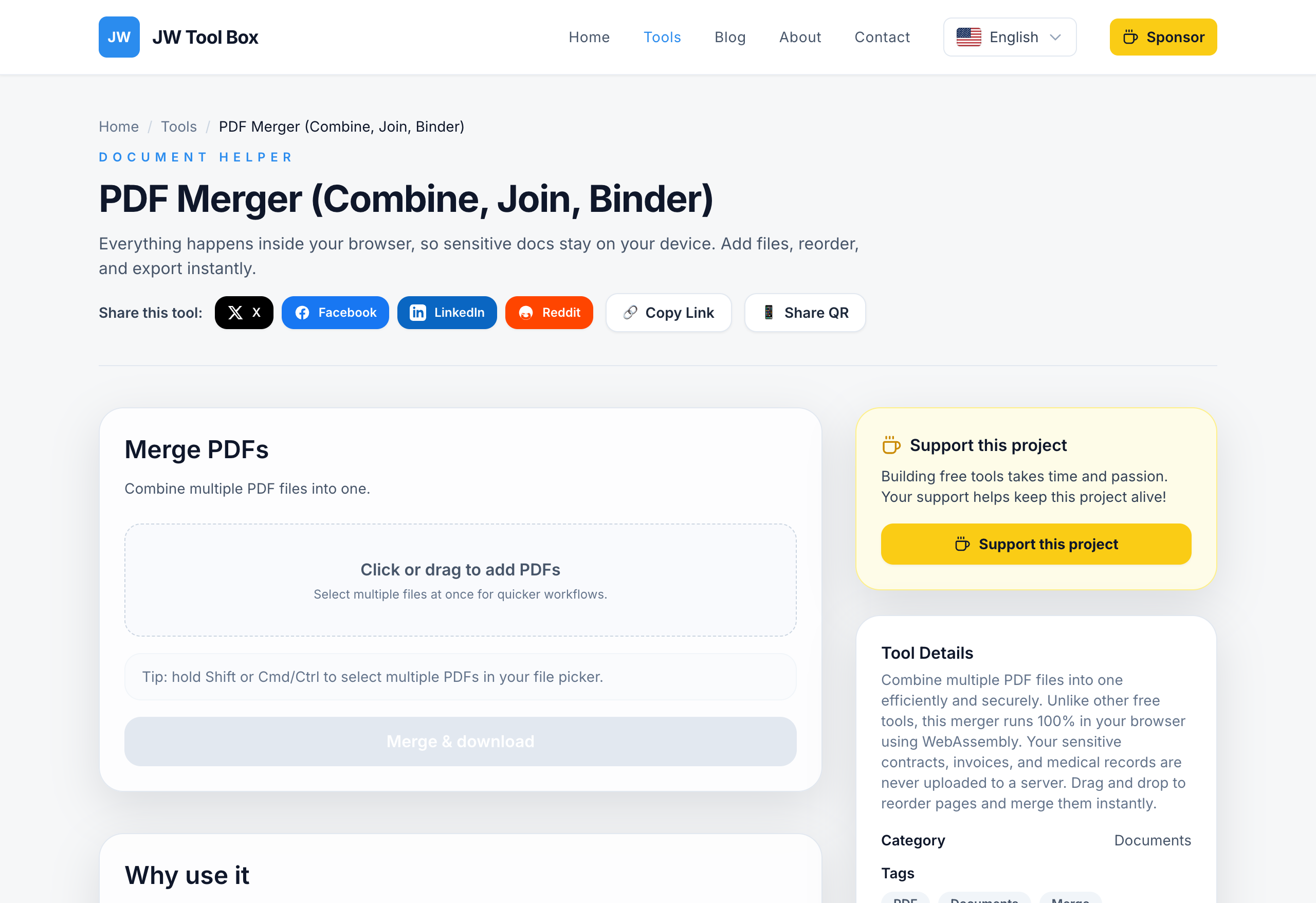
The whole process takes under 30 seconds for most documents.
Common Use Cases
📄 Business & Legal
- Merge a cover letter + resume + portfolio into one attachment
- Combine multiple signed contract pages into one deliverable
- Assemble invoice + receipt + shipping confirmation for expense reports
🎓 Academic
- Combine thesis chapters written by different team members
- Merge research papers + citations into a single submission file
- Join lab reports + data sheets + cover pages
🏠 Personal
- Consolidate property documents, insurance forms, and inspection reports
- Merge multiple bank statements for a loan application
- Combine travel itineraries, booking confirmations, and boarding passes
Tips for Best Results
File size: Since processing uses your browser's memory, try to keep individual files under 50MB for smooth performance. 200-page documents work fine on modern computers.
Order matters: Arrange files in the upload list before merging. The tool processes them top-to-bottom.
Naming your output: The tool generates a timestamped filename automatically. Rename it immediately after downloading to keep files organized (e.g., Contract_Signed_2026-02.pdf).
Password-protected PDFs: If a PDF is password-locked, you'll need to unlock it first using the PDF Unlock Tool before merging.
Why Local Processing Is Better for Privacy
When you use a cloud-based PDF merger, your documents go on a journey:
- Your file leaves your computer and travels to a data center
- It gets stored temporarily on their servers
- It gets processed and a new file is created
- The new file is sent back to you
- Your original document may sit on their servers for hours (or indefinitely)
For contracts, medical records, financial statements, or personal IDs, this is a real privacy risk—even if the service promises deletion.
With JW Tool Box, step 1–5 never happen. The pdf-lib library runs inside your browser tab, and your files never leave your computer.
Frequently Asked Questions
Can I merge more than 2 PDFs at once?
Yes. You can add as many files as you need. There's no hard limit—it depends on your computer's available memory.
Will the merged PDF lose quality?
No. The tool combines your PDF pages at their original resolution. Text, images, and vector graphics remain intact.
What if my PDFs are different sizes (A4 vs Letter)?
The pages will be merged as-is, preserving each page's original dimensions. If you need to standardize page sizes, you can do that in a PDF editor after merging.
Is the tool free forever?
Yes. JW Tool Box is a free, browser-based utility with no plans to add paywalls.
Does it work on mobile?
Yes. The tool works in any modern browser—Chrome, Safari, Firefox—on both desktop and mobile.
By using a local-first tool, you save time on uploads, skip daily limits, and most importantly, keep your private documents private. Try the PDF Merge Tool the next time you need to combine files.
More PDF tools — all free, all local:
- PDF Compressor — Shrink PDF file size without visible quality loss
- PDF to Image — Convert PDF pages to JPG or PNG (step-by-step guide)
- PDF Page Organizer — Reorder, rotate, or delete individual pages
- PDF Lock/Unlock — Add or remove password protection
About the author
JW Tool Box - Editorial and product review team
JW Tool Box publishes hands-on guides tied directly to the site's browser-based tools. Content is updated when browser behavior, platform rules, or product requirements change in ways that affect real workflows. The goal is to provide practical instructions, tested defaults, and trustworthy reference content instead of thin keyword filler.
Related guides
-
Merge, Split & Reorder PDF Pages in the Browser — No Software, No Uploads (2026)
TL;DR — Drop your PDFs into the browser, drag pages around, export. Everything runs locally via pdflib (WebAssembly). Your files never leave your machine. Adobe Acrobat costs $240/year. Smallpdf and iLovePDF upload your files to their servers, which is a nonstarter for NDAs, tax returns, or medical records. And macOS Preview can merge but can't split or reorder without workarounds. Here's how…
-
How to Convert PDF Pages to JPG or PNG Images for Free (No Uploads)
You have a 30page PDF from your professor, your accountant, or your mortgage broker. You need to pull out a few pages as images—maybe to paste into a slide deck, upload to a form that only takes JPG, or just to share a single page in a group chat without sending the entire document. So you Google "convert PDF to JPG" and pick the first result. You upload your file. You wait. The site offers yo…
Related tools
Additional browser-based utilities that are closely related to this workflow.
-
PDF Merger (Combine, Join, Binder)
Combine multiple PDF documents without leaving your browser.
-
PDF Compressor (Reduce Size, Shrink, Optimize)
Shrink PDF size with browser-only rasterization and quality presets.
-
PDF Splitter (Extract Pages, Separate, Cut)
Split PDFs into single pages or export a custom page range.