By JW Tool Box
Merge, Split & Reorder PDF Pages in the Browser — No Software, No Uploads (2026)
A hands-on workflow to combine, extract, and rearrange PDF pages locally in your browser — no uploads, no installs.
Why trust this guide
- Written by JW Tool Box around the actual workflow or linked tool on this page.
- Updated when browser behavior, file handling, or platform dimensions change in ways that affect the steps.
- Focused on practical settings, safe defaults, and real tradeoffs instead of generic filler.
TL;DR — Drop your PDFs into the browser, drag pages around, export. Everything runs locally via
pdf-lib(WebAssembly). Your files never leave your machine.
Adobe Acrobat costs $240/year. Smallpdf and iLovePDF upload your files to their servers, which is a non-starter for NDAs, tax returns, or medical records. And macOS Preview can merge but can't split or reorder without workarounds.
Here's how to do all three operations for free, in the browser, without ever uploading a byte.
The Three Tools (and When to Use Each)
| Task | Tool | Best For |
|---|---|---|
| Combine multiple PDFs into one | PDF Merge | Contracts, multi-part reports, scanned pages |
| Cut a PDF into smaller files | PDF Splitter | Extracting a chapter, separating invoices |
| Rearrange, delete, or rotate pages | PDF Page Organizer | Fix wrong page order, remove blank pages |
Merge: Combining Multiple PDFs
When you'd use this
- A client sent contract pages in 3 separate scans
- You have monthly bank statements you want as one annual file
- Combining a cover letter + resume + references into a single PDF
Step by step
- Open PDF Merge
- Drag all your source PDFs onto the drop zone (or click to browse)
- Reorder the files in the list if needed — drag them up or down
- Click Merge → download the combined PDF
Tips for cleaner merges
- Page size mismatch is fine. The tool preserves each page's original dimensions. A letter-size page and an A4 page will both appear correctly.
- Encrypted PDFs won't merge. Unlock them first with PDF Lock/Unlock, then merge.
- Filename doesn't matter for content, but naming your sources clearly (01-cover.pdf, 02-body.pdf) makes the merge order obvious.
Split: Extracting Pages from a PDF
When you'd use this
- You only need pages 12–28 from a 200-page manual
- A vendor sent one PDF with 6 invoices — you need to file them separately
- You need to email just chapter 3 of a textbook to a classmate
Step by step
- Open PDF Splitter
- Drop your PDF file
- Enter the page range (e.g.,
12-28) or select specific pages - Click Split → download just those pages
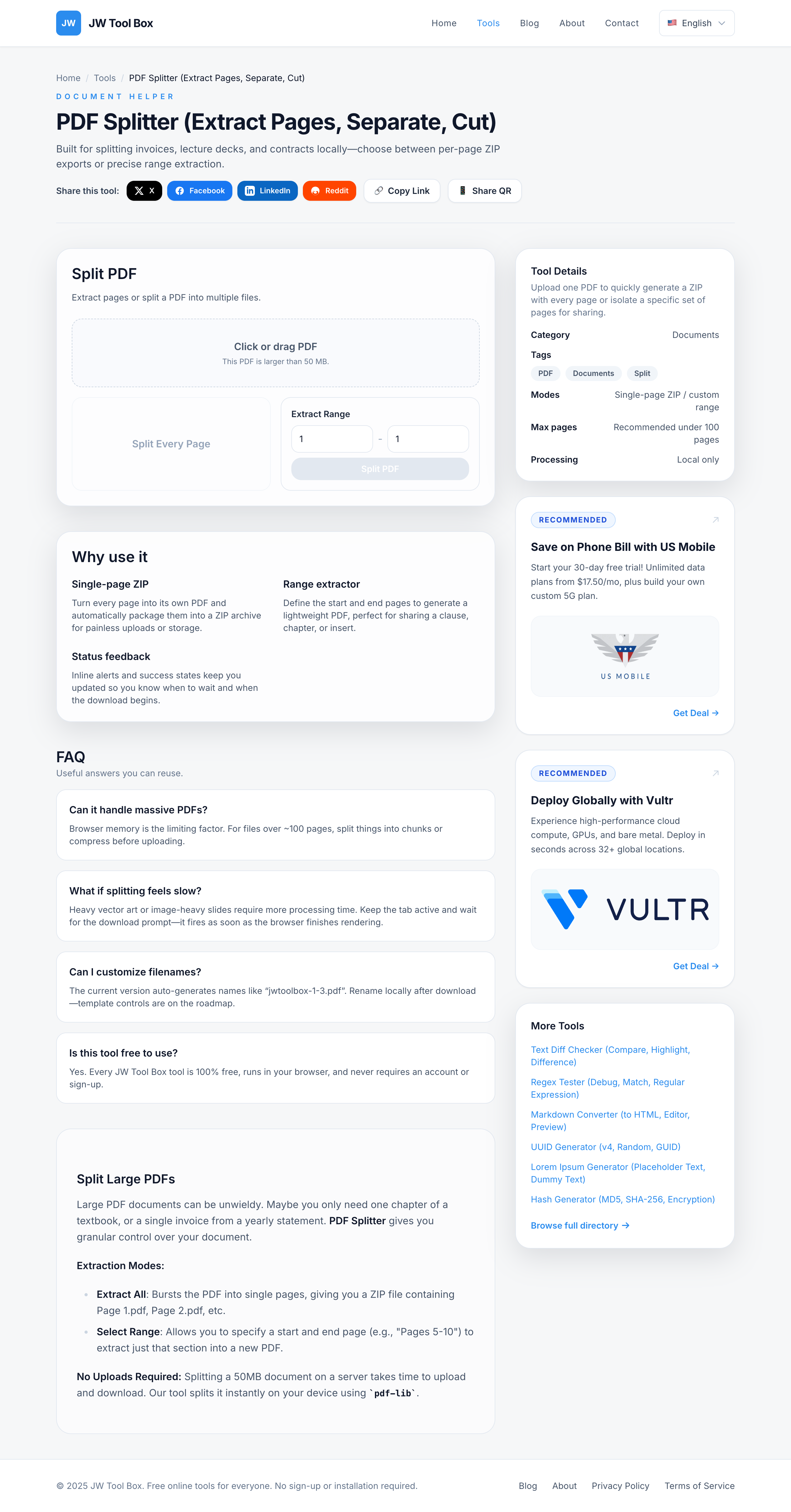
Common page range formats
| Input | Result |
|---|---|
1-5 |
Pages 1 through 5 |
1,3,5 |
Only pages 1, 3, and 5 |
5- |
Page 5 through the last page |
1-3,7,10-12 |
Pages 1–3, 7, and 10–12 |
Reorder: Rearranging Pages in a PDF
When you'd use this
- A scanned document has pages in the wrong order
- You need to move the appendix before the bibliography
- You want to delete blank pages from a scan
Step by step
- Open PDF Page Organizer
- Drop your PDF — you'll see thumbnail previews of every page
- Drag pages to rearrange them, or click the delete button on pages you don't need
- Click Export → download the reorganized PDF
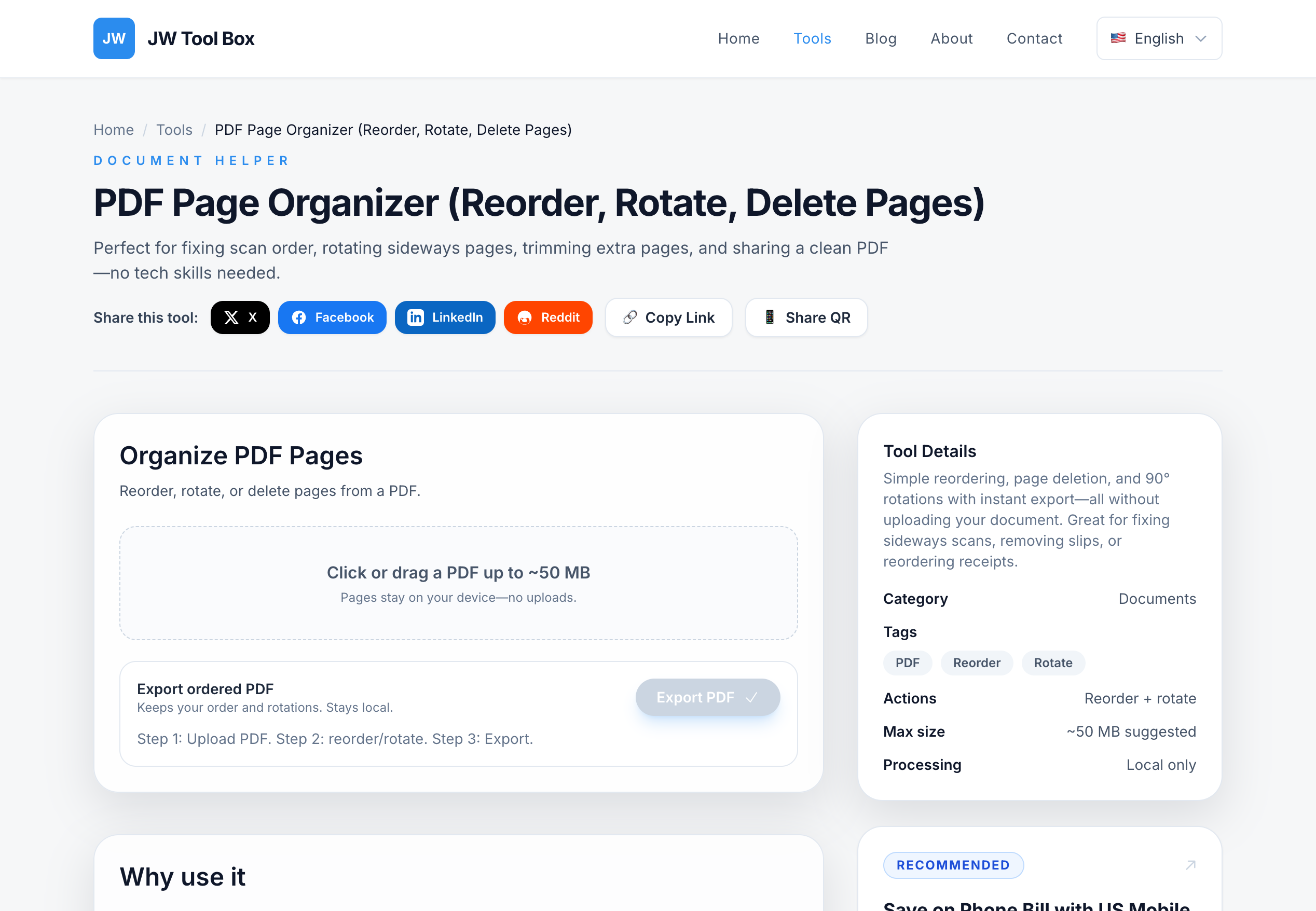
Reorder tips
- Rotate individual pages if a scanned page came in sideways
- Delete blank pages that your scanner inserted between double-sided scans
- Preview before exporting — thumbnails show you exactly what the final order looks like
Combining All Three: A Real Workflow
Here's a scenario that uses all three tools in sequence:
Task: Your accountant needs one clean PDF with this year's tax documents.
- You have 4 separate PDFs: W-2, two 1099s, and a donation receipt
- The W-2 scan has a blank page at the end
- Step 1 — Open PDF Page Organizer → drop the W-2 → delete the blank page → export
- Step 2 — Open PDF Merge → drop all 4 cleaned files → arrange in order → merge
- Step 3 — Open PDF Compressor → drop the merged file → compress for email
Final result: one clean, small PDF. Total time: under 2 minutes. Files uploaded to the internet: zero.
Why "No Upload" Matters for PDFs
Think about what's in most PDFs:
- Tax returns (SSN, income, address)
- Medical records (HIPAA-protected data)
- Legal contracts (confidential terms)
- Business financials (revenue, projections)
- ID scans (passport, driver's license)
When you drag a PDF into these tools, the JavaScript library (pdf-lib) processes the binary data directly in your browser's memory. The file doesn't travel over the network. Close the tab and it's gone.
This isn't a marketing claim — you can verify it yourself by opening your browser's Network tab (F12 → Network) while using the tools. You'll see zero outbound requests carrying your PDF data.
FAQ
Can I merge PDFs on my phone?
Yes. All three tools work in mobile browsers (Chrome on Android, Safari on iOS). The drag-and-drop interface adapts to tap-and-hold on mobile.
Is there a file size limit?
No hard limit, but very large PDFs (100+ MB) may slow down depending on your device's RAM. For most documents under 50 MB, processing is instant.
Do the tools preserve bookmarks and links?
PDF Merge preserves internal structure including bookmarks. PDF Splitter keeps links that point to pages within your extracted range. Links pointing to removed pages will naturally break.
Can I merge password-protected PDFs?
Not directly — you need to remove the password first. Use PDF Lock/Unlock to decrypt, then merge the unlocked files.
What about scanned PDFs (image-only)?
They work fine. Scanned PDFs are just images embedded in a PDF container. The tools handle them identically to text-based PDFs.
More PDF tools:
- PDF Compressor — Shrink file size for email attachments
- Images to PDF — Turn photos or screenshots into a PDF
- PDF Lock/Unlock — Add or remove PDF passwords
About the author
JW Tool Box - Editorial and product review team
JW Tool Box publishes hands-on guides tied directly to the site's browser-based tools. Content is updated when browser behavior, platform rules, or product requirements change in ways that affect real workflows. The goal is to provide practical instructions, tested defaults, and trustworthy reference content instead of thin keyword filler.
Related tools
Additional browser-based utilities that are closely related to this workflow.
-
PDF Merger (Combine, Join, Binder)
Combine multiple PDF documents without leaving your browser.
-
PDF Compressor (Reduce Size, Shrink, Optimize)
Shrink PDF size with browser-only rasterization and quality presets.
-
PDF Page Organizer (Reorder, Rotate, Delete Pages)
Reorder, rotate, delete, and clean up PDF pages locally.
-
PDF Password Remover (Unlock, Decrypt, Unprotect)
Enter the correct password to rebuild an unlocked PDF copy in your browser.
-
PDF Splitter (Extract Pages, Separate, Cut)
Split PDFs into single pages or export a custom page range.