By JW Tool Box
How to Keep Screen On During Google Meet, Zoom & Teams (2026)
Prevent your screen from going dark during Google Meet, Zoom, or Teams calls with a free browser-based wake lock. No software installation required.
Why trust this guide
- Written by JW Tool Box around the actual workflow or linked tool on this page.
- Updated when browser behavior, file handling, or platform dimensions change in ways that affect the steps.
- Focused on practical settings, safe defaults, and real tradeoffs instead of generic filler.
Working from home? Nothing kills your flow faster than your screen going dark in the middle of a Zoom call, a client demo, or while monitoring your work dashboard.
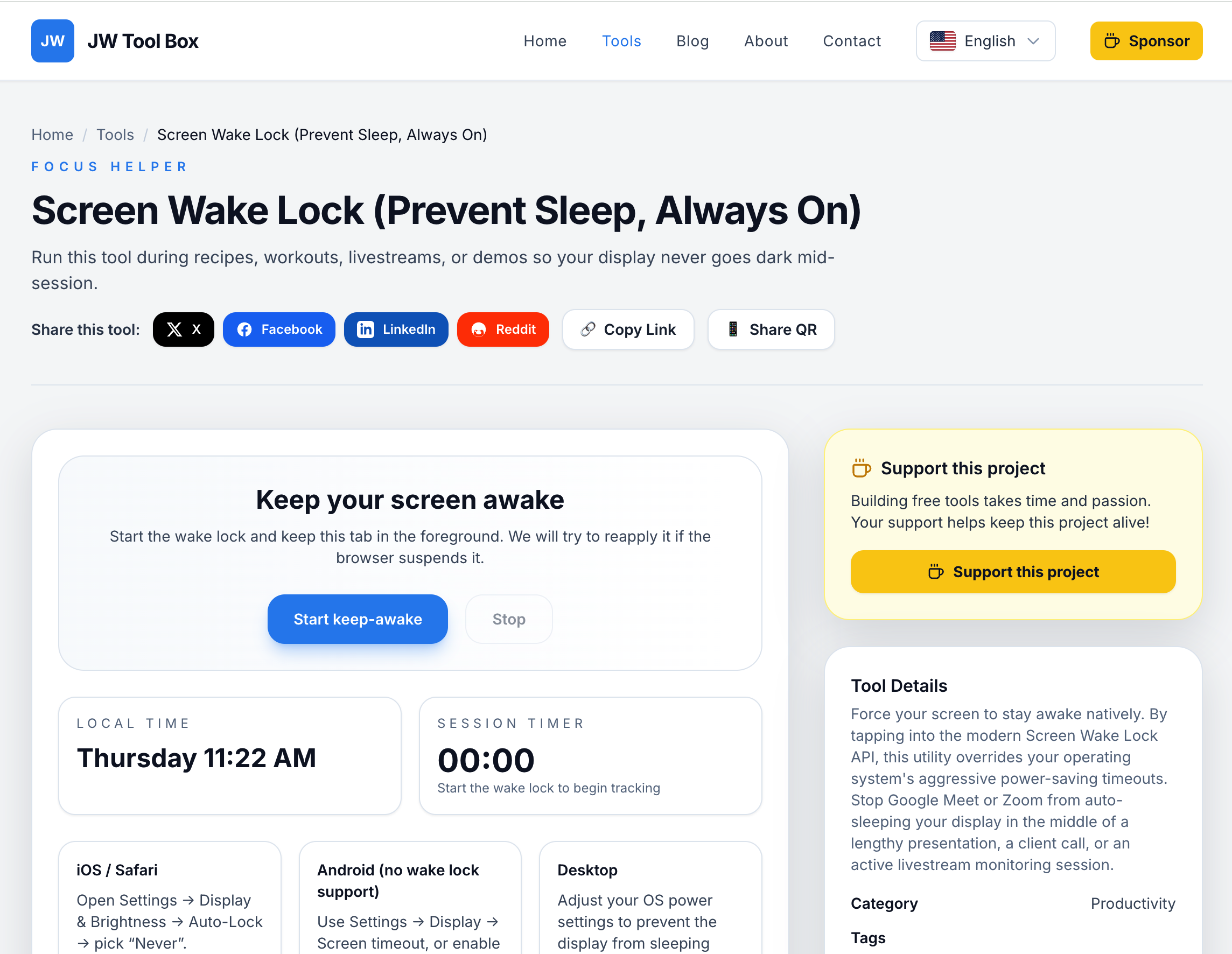
Stop fighting with power settings. Use our Keep Screen On tool to prevent sleep mode with one click—no software installation, no admin privileges required.
If your main problem is a locked-down corporate laptop where IT prevents you from changing sleep settings, read How to Prevent Google Meet & Teams from Auto-Sleeping (No IT Admin Rights) for the stricter enterprise workflow.
Why Remote Workers Need a Screen Wake Lock
Remote work introduced new screen-related frustrations that office workers never faced:
1. Video Call Disasters
The scenario: You're presenting to clients on Zoom. Your screen dims after 5 minutes of no mouse movement. You scramble to wake it up while everyone waits awkwardly.
The fix: Keep Screen On prevents your display from sleeping, even when you're talking without touching the keyboard.
2. Dashboard Monitoring
The scenario: You're a DevOps engineer monitoring production metrics. Every 10 minutes, your screen goes black and you miss critical alerts.
The fix: Run the wake lock tool and your monitoring dashboard stays visible 24/7.
3. Virtual Training Sessions
The scenario: You're conducting a 2-hour remote training. Halfway through, your laptop enters sleep mode and kicks you off the call.
The fix: Start the wake lock before the session begins. Focus on teaching, not power management.
4. Reference Material Viewing
The scenario: You're comparing two documents side-by-side. Your screen dims while you're reading, forcing you to constantly wiggle your mouse.
The fix: Activate the wake lock and read at your own pace without interruptions.
How the Keep Screen On Tool Works
Unlike traditional screen timeout apps that require installation and admin access, our browser-based tool uses the Screen Wake Lock API—a modern web standard supported by Chrome, Edge, and Android browsers.
Technical advantages:
- ✅ No software installation (runs in browser tab)
- ✅ No admin privileges needed (perfect for corporate laptops)
- ✅ Works instantly (one-click activation)
- ✅ Auto-releases on tab close (no manual cleanup)
- ✅ Battery-efficient (only active when tab is visible)
How it works under the hood:
- You click "Start keep-awake"
- The tool requests a wake lock from your browser
- Browser tells the operating system: "Keep display on"
- Your screen stays active until you stop the lock or close the tab
Google Meet on Android and Tablets
If you watch long Google Meet sessions on Android, the same wake-lock idea still applies: keep the browser tab active, start the wake lock before the call or webinar begins, and avoid letting the device dim while you are only listening.
This is especially useful when you are following training, webinars, or company meetings without tapping the screen every few minutes.
When to Use Keep Screen On for Remote Work
Morning Standup Meetings (9:00 AM - 9:15 AM)
Duration: 15 minutes
Why you need it: You're listening, not typing. Without input, your screen might dim.
Pro tip: Start the wake lock 2 minutes before the meeting. Leave the tab open in a browser window next to your video call.
Client Presentations (Variable Duration)
Duration: 30 minutes - 2 hours
Why you need it: You're sharing your screen. If it goes dark, clients see a black screen.
Pro tip: Combine with "Do Not Disturb" mode to prevent notifications from appearing during the demo.
Dashboard Monitoring Shifts
Duration: 4-8 hours
Why you need it: You need continuous visibility of Grafana, Datadog, New Relic, or other monitoring tools.
Pro tip: Use a dedicated browser profile for monitoring. Keep the wake lock tab always open.
Long Video Tutorials (Watching)
Duration: 1-3 hours
Why you need it: You're watching a webinar or course. Your hands might be taking notes on paper.
Pro tip: If the video is full-screen, the browser might already prevent sleep. Use the wake lock for non-full-screen videos.
Working with Second Screen
Duration: Full workday
Why you need it: Your secondary monitor might have different power settings.
Pro tip: Open the wake lock tool on the monitor you want to keep awake. Each display can have its own lock.
Keep Screen On vs. System Settings
| Method | Time to Set Up | Reversibility | Laptop Restrictions |
|---|---|---|---|
| Our Tool | 1 second | Instant (close tab) | Works on locked-down corporate laptops |
| macOS System Preferences | 2-3 minutes | Manual (must change settings back) | Requires admin access on some corporate devices |
| Windows Power Options | 2-3 minutes | Manual (must change settings back) | Often disabled by IT departments |
| Caffeine App (macOS) | 30 seconds (install + launch) | Quick (menubar toggle) | Requires app installation (may be blocked) |
| PowerToys (Windows) | 5 minutes (install + configure) | Quick (toggle) | Requires admin to install |
Why remote workers prefer our tool:
- No IT approval needed: Runs in your browser, which is already approved.
- One-click toggle: Start when needed, stop when done.
- No forgotten settings: Won't drain battery overnight because you forgot to revert system settings.
- Multi-device consistency: Same interface on work laptop, personal desktop, and tablet.
Remote Work Use Cases
Use Case 1: The Virtual Event Speaker
Profile: Sarah, Marketing Manager
Challenge: Presenting at a virtual conference. Screen dims during Q&A when she's not typing.
Solution:
- Open Keep Screen On tool 10 minutes before the event
- Click "Start keep-awake"
- Minimize the tab (it still works in the background)
- Focus on the presentation
- After the event, close the tab (wake lock auto-releases)
Result: Smooth presentation with zero interruptions.
Use Case 2: The Remote Support Engineer
Profile: Mike, IT Support
Challenge: Needs to monitor multiple ticketing systems and chat windows. Screen times out when reading long tickets.
Solution:
- Dedicate one browser window to monitoring tools
- Keep the wake lock tool in a separate tab in that window
- Activate wake lock at the start of the shift
- Stop it during lunch break to save battery
Result: Never misses an urgent ticket due to screen timeout.
Use Case 3: The Work-From-Home Parent
Profile: Lisa, Freelance Designer
Challenge: Works in short bursts between childcare duties. Laptop sleeps frequently, requiring password re-entry.
Solution:
- Start the wake lock when sitting down to work
- Keep browser tab open while designing in Figma/Photoshop
- Stop the lock when stepping away for more than 30 minutes
Result: Eliminates the "unlock laptop 20 times a day" frustration.
Use Case 4: The Global Team Collaborator
Profile: Raj, Software Developer (India → US meetings)
Challenge: Late-night meetings with US team. Laptop auto-sleeps during passive listening, causing VPN disconnects.
Solution:
- Before joining the 11 PM meeting, start the wake lock
- Keep tab visible in a small window corner
- Stop the lock after the meeting to let laptop sleep normally
Result: Stays connected throughout the meeting without manual intervention.
Use Case 5: The Remote Tutor
Profile: Emily, Online Math Teacher
Challenge: Screen dims while demonstrating problems on a digital whiteboard. Students think she's offline.
Solution:
- Pre-flight routine: Open Keep Screen On + Zoom + whiteboard app
- Activate wake lock before students join
- Focus on teaching without screen interruptions
- Release lock after the session
Result: Professional appearance with no technical glitches.
Comparison with Popular Tools
vs. Caffeine (macOS Menu Bar App)
Caffeine:
- ✅ Native macOS app (lightweight)
- ❌ Requires installation
- ❌ macOS only
- ❌ No cross-device sync
Our Tool:
- ✅ Browser-based (zero install)
- ✅ Works on macOS, Windows, Linux, Android
- ✅ Same interface everywhere
- ✅ No app updates needed
vs. PowerToys Awake (Windows)
PowerToys:
- ✅ Integrated with Windows (system-level control)
- ❌ Requires admin installation
- ❌ Windows 10/11 only
- ❌ 300+ MB installation size
Our Tool:
- ✅ Instant browser access
- ✅ No installation
- ✅ Works on Chromebooks, tablets, phones
- ✅ Zero disk space
vs. System Preferences (macOS/Windows)
System Settings:
- ✅ Built-in (no third party needed)
- ❌ Requires 2-3 minutes to navigate settings
- ❌ Affects entire system (can't be selective)
- ❌ Easy to forget to revert (battery drain overnight)
Our Tool:
- ✅ Selective (only affects when tab is open)
- ✅ One-click toggle
- ✅ Auto-resets when tab closes
- ✅ No forgotten settings causing battery issues
Best Practices for Remote Work
Practice 1: Create a Wake Lock Bookmark
Save the tool URL as a bookmark in your "Work" folder. One click to open it anytime.
Bookmark organization:
📁 Work Bookmarks
   ├── 🔗 Gmail
   ├── 🔗 Slack
   ├── 🔗 Zoom
   ├── 🔗 Keep Screen On ← Add this
   └── 🔗 Company Intranet
Practice 2: Use Browser Profiles
Create separate browser profiles for work and personal use. Keep the wake lock tab pinned in your work profile.
Why it helps:
- Work sessions always have the tool ready
- Personal browsing won't accidentally drain battery
- Clean separation of contexts
Practice 3: Combine with "Do Not Disturb" Mode
When presenting or in deep focus:
- Enable system "Do Not Disturb" (macOS Focus Mode / Windows Focus Assist)
- Activate Keep Screen On
- Close all non-essential apps
Result: Zero interruptions from notifications or screen dimming.
Practice 4: Set Wake Lock for Specific Meetings Only
Not every meeting needs a wake lock. Use it strategically:
When to use:
- ✅ You're presenting/screen sharing
- ✅ You're passively listening for 20+ minutes
- ✅ You're monitoring a dashboard
When to skip:
- ❌ Active discussion where you're typing often
- ❌ Short 1-on-1 calls (5-10 minutes)
- ❌ Audio-only calls (screen doesn't matter)
Practice 5: Battery Management on Laptops
If you're on battery power:
- Activate wake lock only during critical tasks
- Stop it during breaks
- Use browser's native power-saving mode alongside the tool
Pro tip: On macOS, check Activity Monitor → Energy tab to see battery impact.
Troubleshooting Common Issues
Issue 1: "Wake Lock Not Supported in This Browser"
Cause: Safari and Firefox don't yet support the Screen Wake Lock API.
Solution:
- Option A: Switch to Chrome, Edge, or Brave (preferred)
- Option B: Use system settings as a fallback:
- macOS: System Preferences → Energy Saver → Prevent computer from sleeping
- Windows: Settings → System → Power & Sleep → Screen timeout = Never
Issue 2: Screen Still Dims After Activating Wake Lock
Cause: Tab is not visible (minimized or in background).
Solution:
- Keep the browser window with the wake lock tab visible
- Use split-screen mode (wake lock tab on one side, work app on the other)
- Pin the tab so you don't accidentally close it
Issue 3: Wake Lock Releases When Switching Tabs
Cause: Browser suspends background tabs to save resources.
Solution:
- Keep the wake lock tab as the active tab (or use split-screen)
- Use a second browser window exclusively for the wake lock
- Pin the tab to prevent accidental closure
Issue 4: Battery Drains Faster Than Expected
Cause: Screen staying on consumes more power (this is expected behavior).
Solution:
- Lower screen brightness while using the wake lock
- Disable wake lock during breaks
- Use the tool only when necessary (not all day)
Battery saving tip: On a 50% brightness setting, wake lock uses ~40% less battery than on full brightness.
Issue 5: Corporate Laptop Blocks the Tool
Cause: Some IT departments block certain browser APIs.
Solution:
- Contact IT to whitelist the Screen Wake Lock API
- Use an external monitor with separate power settings
- As a last resort, use a physical device like a USB "mouse jiggler"
Privacy and Security
Is My Data Collected?
No. The wake lock tool runs entirely in your browser. It doesn't:
- Track your usage
- Send data to our servers
- Access your screen content
- Monitor other tabs or applications
How to verify: Open your browser's Developer Tools (F12) → Network tab. You'll see zero network requests after the page loads.
Can It Be Used Maliciously?
Highly unlikely. The Screen Wake Lock API has built-in safeguards:
- Requires user interaction (you must click "Start")
- Auto-releases when tab is hidden
- Can't prevent your laptop lid from triggering sleep
- Can't override critical battery-saving measures
Does It Work in Incognito Mode?
Yes. The tool functions identically in private/incognito windows. Your wake lock history isn't stored anywhere.
GDPR and Privacy Compliance
Since no data is collected or stored, GDPR doesn't apply. The tool respects your privacy by design.
Advanced Tips for Power Users
Tip 1: Keyboard Shortcut to Open the Tool
macOS:
- Open System Preferences → Keyboard → Shortcuts
- Add a custom shortcut for your browser
- Assign a URL to the shortcut:
www.jwtoolbox.com/tools/keep-screen-on
Windows:
- Right-click desktop → New → Shortcut
- Enter URL:
https://www.jwtoolbox.com/tools/keep-screen-on - Assign a hotkey (e.g., Ctrl+Alt+K)
Tip 2: Combine with Task Automation
If you use tools like Zapier, IFTTT, or Shortcuts (iOS/macOS), you can:
- Auto-open the wake lock tool when joining a calendar meeting
- Trigger it when connecting to a specific Wi-Fi network (e.g., "Home Office")
- Start it when a specific app launches (e.g., Zoom, Teams)
Example macOS Shortcut:
When: Calendar event starts with title containing "Demo"
Action: Open URL → www.jwtoolbox.com/tools/keep-screen-on
Tip 3: Use Multiple Monitors Strategically
If you have a dual-monitor setup:
- Monitor 1: Work applications (IDE, browser, Slack)
- Monitor 2: Monitoring tools + Keep Screen On tab
Why it works: Even if Monitor 1 times out, Monitor 2 stays awake for dashboards.
Tip 4: Create a "Focus Mode" Browser Profile
In Chrome or Edge:
- Create a new profile called "Focus Mode"
- Pin these tabs:
- Keep Screen On
- Spotify/Music
- Pomodoro Timer
- Remove all social media and news sites
Result: A distraction-free environment that never sleeps.
Frequently Asked Questions
Does it work on company laptops with restricted settings?
Yes. Since it's browser-based, it bypasses most corporate restrictions. IT policies typically control system settings but allow browser features.
Will it prevent my laptop from going to sleep when I close the lid?
No. The Screen Wake Lock API only affects the display. Closing the lid triggers hardware-level sleep, which overrides browser wake locks.
Can I use it for overnight monitoring?
Yes, but not recommended on battery. If your laptop is plugged in, the wake lock can run indefinitely. On battery, it will drain faster. Consider using a dedicated monitoring device (Raspberry Pi, old phone) for 24/7 tasks.
Does it work on iPads and iPhones?
Partially. Safari on iOS doesn't support the Screen Wake Lock API yet. You'll see fallback instructions (Settings → Display → Auto-Lock → Never).
Can I use it with external displays?
Yes. The wake lock affects the system's display policy, which includes connected external monitors.
What's the battery impact on a typical workday?
Example calculation (MacBook Pro 13"):
- Without wake lock: 10 hours battery life
- With wake lock (50% brightness): ~7-8 hours battery life
- With wake lock (100% brightness): ~5-6 hours battery life
Recommendation: Use wake lock strategically, not all day.
Can I schedule it to start automatically?
Browser limitations: Browsers don't allow automatic wake lock activation (requires user click for security). However, you can use browser extensions like "Auto Refresh" to auto-open the page, then manually click "Start."
Is there a mobile app version?
Not needed. The browser version works perfectly on Android phones and tablets using Chrome. iOS users should adjust system settings directly.
What happens if my internet disconnects?
The tool continues working. After the initial page load, it runs entirely offline. No internet connection is required to maintain the wake lock.
Can I use it while on a video call?
Yes, that's a primary use case. Keep the wake lock tab open alongside Zoom, Teams, or Google Meet. Your screen won't dim during the call.
Start Working Without Interruptions
Stop letting your screen ruin your remote work flow. Use our Keep Screen On tool to:
✅ Prevent screen timeout during video calls
✅ Keep dashboards visible 24/7
✅ Focus on work without touching your mouse every 5 minutes
✅ Works on corporate laptops without admin access
100% free. No installation. One-click activation.
Try it now: Keep Screen On Tool
Related Tools:
- Countdown Timer – Time your Pomodoro work sessions
- World Clock – Schedule meetings across time zones
- QR Code Generator – Share links quickly in meetings
About the author
JW Tool Box - Editorial and product review team
JW Tool Box publishes hands-on guides tied directly to the site's browser-based tools. Content is updated when browser behavior, platform rules, or product requirements change in ways that affect real workflows. The goal is to provide practical instructions, tested defaults, and trustworthy reference content instead of thin keyword filler.
Related guides
-
How to Prevent Google Meet & Teams from Auto-Sleeping (No IT Admin Rights)
You are 20 minutes into viewing a crucial companywide allhands meeting on Google Meet. You haven't touched your mouse because you're just listening. Suddenly, your screen dims. A few seconds later, it goes completely black, your computer locks, and your audio cuts out. Working from home usually means dealing with aggressive corporate IT security policies that enforce a strict 5minute screen lo…
Related tools
Additional browser-based utilities that are closely related to this workflow.
-
Screen Wake Lock (Prevent Sleep, Always On)
Prevent your screen from dimming on Google Meet, Zoom, or while presenting.