By JW Tool Box
How to Prevent Google Meet & Teams from Auto-Sleeping (No IT Admin Rights)
A no-admin workflow for preventing Google Meet and Teams from sleeping on corporate laptops where IT blocks power-setting changes.
Why trust this guide
- Written by JW Tool Box around the actual workflow or linked tool on this page.
- Updated when browser behavior, file handling, or platform dimensions change in ways that affect the steps.
- Focused on practical settings, safe defaults, and real tradeoffs instead of generic filler.
You are 20 minutes into viewing a crucial company-wide all-hands meeting on Google Meet. You haven't touched your mouse because you're just listening. Suddenly, your screen dims. A few seconds later, it goes completely black, your computer locks, and your audio cuts out.
Working from home usually means dealing with aggressive corporate IT security policies that enforce a strict 5-minute screen lock timeout. While secure, it ruins the experience of watching webinars, reviewing long PDFs, or presenting slide decks.
Worse yet, you can't open your Windows/Mac settings to change the sleep timer because IT locked those settings behind Administrator Privileges.
If you do have normal control of your device and just want the broader everyday workflow for Meet, Zoom, Teams, and Android, start with How to Keep Screen On During Google Meet, Zoom & Teams (2026).
Here is how to safely prevent your screen from falling asleep without triggering security alarms or getting fired for installing banned software.
Why "Mouse Jigglers" Are a Bad Idea
If you Google this problem, forums will tell you to download "mouse jiggler" software. Do not do this on a corporate machine.
- IT Departments Flag Them: Most enterprise antivirus software instantly flags
Caffeine.exeor background jiggler scripts as malware or policy violations. - You Cannot Install Them: You likely do not have the admin password to install the executable file anyway.
- Physical Jigglers Look Suspicious: Buying a physical USB device to mechanically shake your mouse takes up a USB port and looks remarkably unprofessional if you ever return to a hybrid office.
The Safe Solution: Web browser Wake Locks
The safest, stealthiest way to override your computer's sleep setting is to use Standard Web APIs. Modern web browsers (Chrome, Edge, Safari) have a built-in feature called the Wake Lock API.
This API allows a web page to politely ask your operating system: "Hey, I am displaying something important right now, please do not turn off the screen." It's the exact same underlying technology that prevents your phone screen from locking while watching a YouTube video.
Because it runs completely within the sandboxed environment of your corporate-approved web browser, it requires zero installations, no downloads, and no administrator rights.
How to Keep Your Screen Awake
We built a free, privacy-focused utility to trigger this browser API whenever you need it.
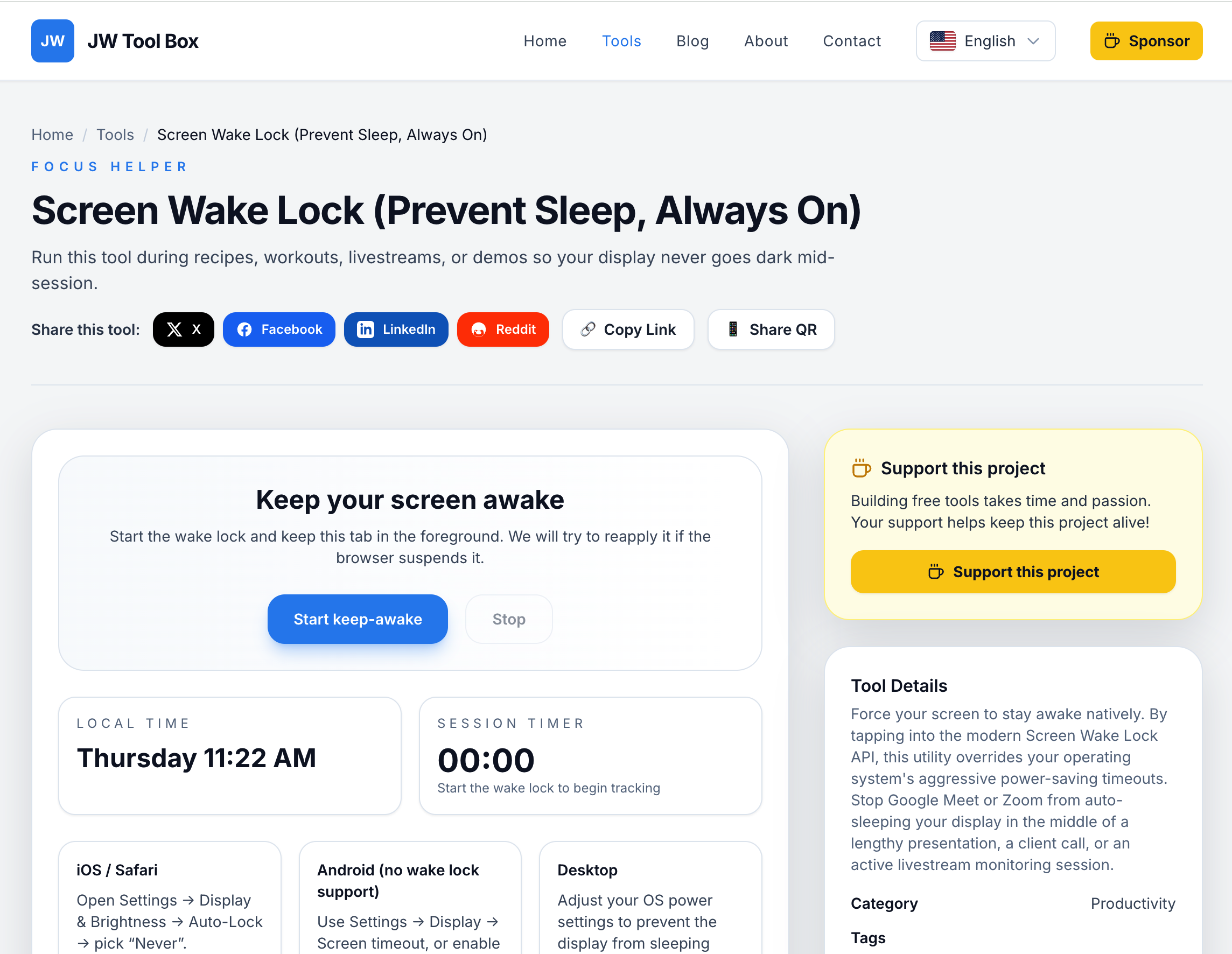
- Open our Keep Screen On tool in a new browser tab.
- Click the large Activate Screen Wake Lock button.
- That's it. As long as that tab remains open in your browser, your computer will not go to sleep, your screen will not dim, and your Slack/Teams status will remain active.
Pro-Tips for Webinars and Presentations
- The Split-Screen Method: Keep the Wake Lock tool open in a small background tab while your Google Meet or Microsoft Teams window is in the foreground. It respects your active status globally.
- Presenting Slide Decks: If you are sharing a PowerPoint or Google Slides presentation and speaking without moving your mouse, activating the Wake Lock on a second monitor ensures your presentation isn't interrupted by an embarrassing black screen.
Our Keep Screen On tool uses zero system resources, requires no sign-ups, and is guaranteed safe for strict corporate IT environments. Bookmark it before your next long meeting.
About the author
JW Tool Box - Editorial and product review team
JW Tool Box publishes hands-on guides tied directly to the site's browser-based tools. Content is updated when browser behavior, platform rules, or product requirements change in ways that affect real workflows. The goal is to provide practical instructions, tested defaults, and trustworthy reference content instead of thin keyword filler.
Related guides
-
How to Keep Screen On During Google Meet, Zoom & Teams (2026)
Working from home? Nothing kills your flow faster than your screen going dark in the middle of a Zoom call, a client demo, or while monitoring your work dashboard. Stop fighting with power settings. Use our Keep Screen On tool to prevent sleep mode with one click—no software installation, no admin privileges required. If your main problem is a lockeddown corporate laptop where IT prevents you…
Related tools
Additional browser-based utilities that are closely related to this workflow.
-
Screen Wake Lock (Prevent Sleep, Always On)
Prevent your screen from dimming on Google Meet, Zoom, or while presenting.