By JW Tool Box
How to Remove Password from PDF Files Online
Why trust this guide
- Written by JW Tool Box around the actual workflow or linked tool on this page.
- Updated when browser behavior, file handling, or platform dimensions change in ways that affect the steps.
- Focused on practical settings, safe defaults, and real tradeoffs instead of generic filler.
Unlock your documents with our PDF Unlocker. Password-protecting PDF files is a great way to secure sensitive information. However, it can become a hassle if you need to share the file with colleagues who don't have the password, or if you simply want to archive a personal copy without the annoyance of typing a password every time you open it.
If you know the password but want to remove it permanently from the file, you can do so easily using online tools.
When Should You Remove a PDF Password?
- Archiving: Storing old bank statements or bills where security is less of a concern than accessibility.
- Sharing: Sending a document to a team where a password would be an unnecessary friction.
- Presentation: Ensuring a file opens immediately during a meeting without fumbling for credentials.
Note: You must know the current password to remove it. These tools are designed for owners to unlock their own files, not to crack files you don't have access to.
The Privacy Concern
Most online PDF tools require you to upload your document to their server to process it. For sensitive documents like tax returns or contracts, this is a major security risk. You don't want your private data sitting on a stranger's server.
The Solution: Client-Side Processing.
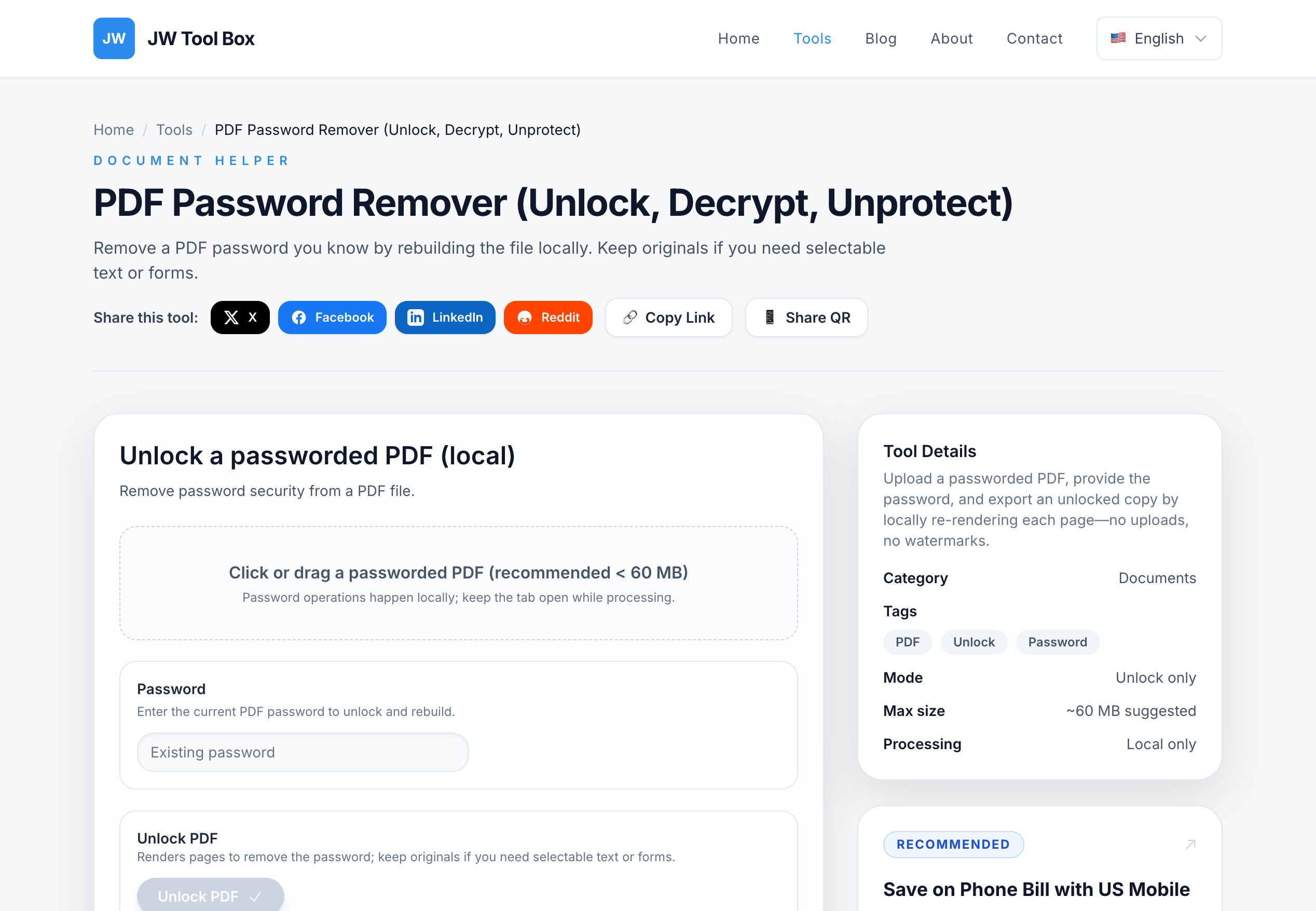
The JW Tool Box PDF Unlocker runs entirely in your browser. Your file is never uploaded to the cloud. The unlocking process happens locally on your device using JavaScript.
Step-by-Step Guide to Unlocking a PDF
- Open the Tool: Go to the PDF Unlocker page.
- Select Your File: Click to upload or drag and drop your password-protected PDF.
- Enter the Password: Type in the current valid password for the document.
- Unlock and Download: Click the button. The tool will re-generate a new version of your PDF without the password protection.
- Save: Download your unlocked file instantly.
What Happens During Unlocking?
Technically, the tool uses the password you provide to decrypt the file content in memory and then writes a fresh PDF file structure that no longer requires encryption. Because this happens locally, it's as fast as your computer can process it—usually instantaneous for standard documents.
Keep your documents accessible and secure by managing your PDF passwords wisely.
About the author
JW Tool Box - Editorial and product review team
JW Tool Box publishes hands-on guides tied directly to the site's browser-based tools. Content is updated when browser behavior, platform rules, or product requirements change in ways that affect real workflows. The goal is to provide practical instructions, tested defaults, and trustworthy reference content instead of thin keyword filler.
Related tools
Additional browser-based utilities that are closely related to this workflow.
-
PDF Password Remover (Unlock, Decrypt, Unprotect)
Enter the correct password to rebuild an unlocked PDF copy in your browser.