By JW Tool Box
Batch Convert HEIC to JPG Free (No Upload) | 2026 Guide
Struggling to open iPhone HEIC photos on Windows or Android? Batch convert HEIC to JPG in seconds with no upload and no software to install.
Why trust this guide
- Written by JW Tool Box around the actual workflow or linked tool on this page.
- Updated when browser behavior, file handling, or platform dimensions change in ways that affect the steps.
- Focused on practical settings, safe defaults, and real tradeoffs instead of generic filler.
If you've recently tried to upload an iPhone photo to a job application, a government portal, or even just a school submission system like Canvas, you've probably hit a wall. iPhones use the HEIC format by default because it saves roughly 50% more storage than JPG at the same quality.
The frustrating reality in 2026? Windows, most Android devices out of the box, and countless legacy web forms still can't open or accept .heic files natively. They just throw a generic "Invalid File Type" error and leave you scrambling.
This guide shows you how to convert HEIC to JPG for free—instantly, in your browser, without uploading your photos anywhere.
⚡ Quick Start
→ HEIC to JPG Converter — drag your HEIC files, choose JPG or PNG, download. Done.
Works on Windows, Mac, Linux, and mobile browsers. No account. No upload. No software to install.
What Is HEIC and Why Does Apple Use It?
HEIC (High Efficiency Image Container) is Apple's implementation of the HEIF standard, introduced with iOS 11 in 2017. It uses HEVC (H.265) compression, which delivers:
- ~50% smaller file sizes than identical-quality JPG
- Better quality at small sizes — less compression artifact banding
- Support for 16-bit color depth vs JPG's 8-bit
- Live Photos, depth maps, and burst photos stored in one container
The trade-off: JPG has 25+ years of universal compatibility. HEIC is still catching up.
When You Need to Convert HEIC to JPG
- 📤 Sharing with Windows users — Without the paid HEVC Video Extensions codec from the Microsoft Store, Windows 10/11 simply shows a broken image icon.
- 🌐 Uploading to strict Web Forms — Government portals, legacy CMS platforms, and academic submission systems (like Blackboard/Canvas) frequently reject HEIC outright.
- 🖨️ Printing at Kiosks — Walk up to a CVS, Walgreens, or Walmart photo kiosk, and there's a good chance it won't read the HEIC files off your phone.
- 🎨 Editing in older software — Still rocking Photoshop CS6 or an older version of GIMP? They don't support HEIC.
- 📧 Corporate Email — Dealing with strict IT policies means some enterprise email clients strip HEIC attachments because they can't virus-scan the container format properly.
How to Convert HEIC to JPG Free (Step by Step)
- Open the Converter: Visit HEIC to JPG Converter
- Add Your Files: Drag and drop your
.heicfiles onto the upload area — or click to browse. You can add up to 30 files at once for batch conversion - Choose Output Format:
- JPG — Best for sharing, social media, and printing. Adjust quality (80% recommended for a good balance)
- PNG — Lossless quality. Use this if you need to edit further or need transparency support
- Convert: Processing happens immediately in your browser using JavaScript — no server involved
- Download: Click individual files or download all as a ZIP
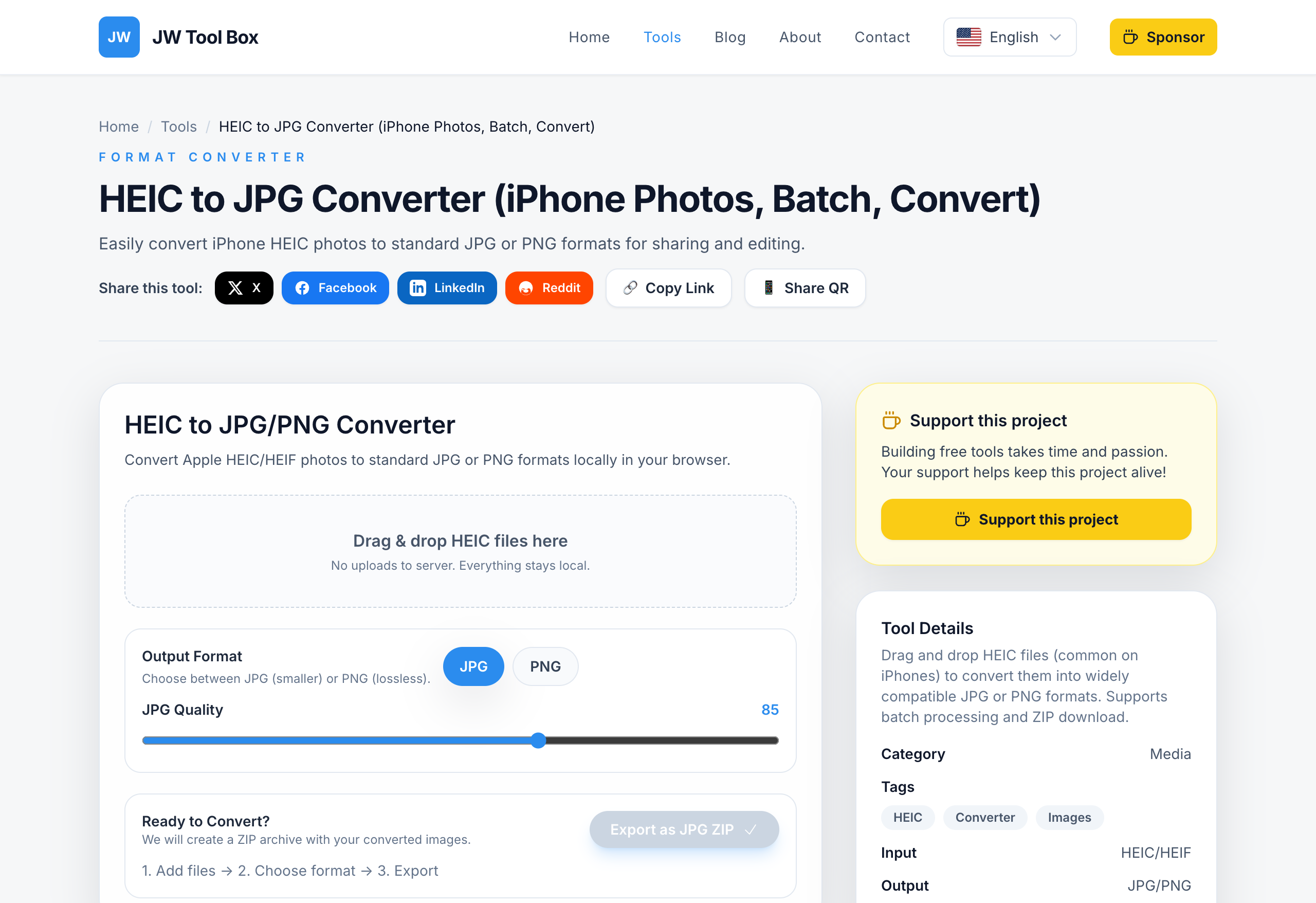
The whole process takes about 2–3 seconds per photo, depending on your device speed.
JPG vs PNG: Which Output Format Should You Choose?
| JPG | PNG | |
|---|---|---|
| File size | Smaller (lossy compression) | Larger (lossless) |
| Quality | Slight reduction at low quality settings | Pixel-perfect, no loss |
| Use for | Sharing, social media, printing, web | Editing later, screenshots, transparency |
| Transparency | ❌ Not supported | ✅ Supported |
| Best quality slider | 80–90% | N/A (lossless) |
Recommendation for most users: JPG at 80–85% quality gives files that look identical to the original HEIC at less than half the size.
How to Batch Convert Multiple HEIC Files at Once
- On your iPhone: go to Photos → Select → tap all photos → Share → AirDrop or Files
- On Mac/Windows: you'll receive the files as
.heic - Drop all files onto the HEIC Converter at once (up to 30 at a time)
- Click Download All to get a single ZIP with all converted JPGs
This beats converting one at a time in any other tool, or paying for desktop software.
Comparison: Best Free HEIC to JPG Converters 2026
| Tool | Batch Support | Local Processing | Upload Required | Limit |
|---|---|---|---|---|
| JW Tool Box | ✅ Up to 30 | ✅ Yes | ❌ No | No limit |
| iLovePDF / iLoveIMG | ✅ Yes | ❌ Cloud | ✅ Yes | 2/day free |
| HEIC to JPG (heictojpg.com) | ✅ Yes | ❌ Cloud | ✅ Yes | 50/day |
| Windows Photos App | ❌ One at a time | ✅ Local | ❌ No | None |
| macOS Preview | ❌ Limited batch | ✅ Local | ❌ No | None |
| CopyTrans HEIC (Windows) | ❌ Plugin only | ✅ Local | ❌ No | Free plugin |
The Reality Check for 2026: If you search for "HEIC converter," you'll find dozens of ad-heavy sites that require you to upload your photos to their servers. For privacy (these are your personal photos, selfies, and ID documents!) and speed (batch converting 30 photos locally takes seconds, uploading them takes minutes), browser-based local processing is the only method you should be using.
Alternative: Change Your iPhone to Shoot JPG Instead
If you'd rather not convert at all, you can change your iPhone camera to capture JPG by default:
- Go to Settings → Camera → Formats
- Select "Most Compatible" instead of "High Efficiency"
Trade-off: This doubles your photo storage usage. HEIC is worth keeping for everyday shots—just convert when you need to share or edit.
Why Local Processing Matters for Your Privacy
When you upload photos to a cloud converter:
- Your images travel to a remote server
- The service processes and temporarily stores them
- Many services keep uploads for 24–72 hours (read their privacy policy)
For a batch of iPhone photos that likely includes faces, locations, and personal moments—that's a meaningful privacy trade-off.
JW Tool Box uses the heic2any JavaScript library, which runs entirely in your browser tab. Your HEIC files are decoded by your own CPU and converted locally. Nothing is transmitted.
Frequently Asked Questions
Why can't Windows open HEIC files natively?
Windows 10/11 can preview HEIC in Photos and File Explorer, but only if you have the HEVC Video Extensions installed (free from Microsoft Store for devices sold after 2018, otherwise $0.99). Our converter skips this entirely.
Will converting to JPG reduce my photo quality?
Converting from HEIC to JPG at 85% quality causes minimal visible quality loss for most photos. If you're extremely quality-sensitive, use PNG output (lossless) instead.
Can I convert HEIC on Android?
Yes. The converter works in any modern mobile browser (Chrome for Android, Samsung Internet). Open the tool on your Android phone, upload the HEIC files, and download the JPGs.
What if conversion fails for some files?
Very large HEIC files (30MB+) or Live Photos with complex depth-map data may occasionally fail in browser-based conversion. For those specific files, try converting on Mac using Preview (File → Export → JPEG).
Can I convert HEIC to PNG instead of JPG?
Yes. Toggle the output format to PNG in the tool. PNG gives lossless quality at larger file sizes—ideal for further editing.
Is there a file size limit?
No server limit—it's your browser's memory. Most modern computers can handle 30 files at 5–10MB each without issues.
Try the HEIC to JPG Converter — it's the fastest way to convert iPhone photos without touching a cloud server.
About the author
JW Tool Box - Editorial and product review team
JW Tool Box publishes hands-on guides tied directly to the site's browser-based tools. Content is updated when browser behavior, platform rules, or product requirements change in ways that affect real workflows. The goal is to provide practical instructions, tested defaults, and trustworthy reference content instead of thin keyword filler.
Related guides
-
How to Batch Convert HEIC to JPG Locally on Mac or PC (Zero Uploads)
If you own an iPhone or an iPad, you've inevitably run into the "HEIC problem." You try to upload a photo to a website, attach it to a Windows email client, or submit it to a government portal, and you get hit with an Invalid File Format error. To fix this, most people instinctively Google "convert HEIC to JPG" and click the first result. Here is why that is a terrible idea for your privacy. M…
-
How to Convert HEIC to JPG Directly on iPhone (and PC/Mac)
If you use an iPhone, you've probably encountered the HEIC format. You take a photo, try to upload it to a website or send it to a Windows PC, and suddenly it's unreadable. "File format not supported" is a frustrating error message. While HEIC (High Efficiency Image Container) is great for saving space on your phone, it's terrible for compatibility. Here is how to convert your HEIC photos to t…
Related tools
Additional browser-based utilities that are closely related to this workflow.
-
Image Compressor (Reduce Size for Web, PNG/JPG/WebP)
Shrink PNG/JPG/WebP files and export optimized assets instantly.
-
Resize Image for Instagram & Facebook (No Quality Loss)
Resize images to exact dimensions and convert to WebP, JPEG, or PNG entirely in your browser.
-
Batch Convert HEIC to JPG — Free iPhone Photo Converter
Batch convert HEIC to JPG or PNG instantly in your browser. No upload, no file limits.