By JW Tool Box
How to Batch Convert HEIC to JPG Locally on Mac or PC (Zero Uploads)
Stop uploading your private iPhone photos to shady online converters. Here is the safest, fastest way to batch convert HEIC to JPG entirely in your web browser—no software installation required.
Why trust this guide
- Written by JW Tool Box around the actual workflow or linked tool on this page.
- Updated when browser behavior, file handling, or platform dimensions change in ways that affect the steps.
- Focused on practical settings, safe defaults, and real tradeoffs instead of generic filler.
If you own an iPhone or an iPad, you've inevitably run into the "HEIC problem." You try to upload a photo to a website, attach it to a Windows email client, or submit it to a government portal, and you get hit with an Invalid File Format error.
To fix this, most people instinctively Google "convert HEIC to JPG" and click the first result.
Here is why that is a terrible idea for your privacy.
Most free online converters operate on a cloud-processing model. When you drag and drop your photos into their website, your browser actually uploads those high-resolution, GPS-tagged images to a remote server. The server converts them and sends them back. For casual photos, maybe you don’t care. But if you are trying to convert photos of a driver's license, sensitive medical documents, or pictures of your kids, handing them over to an anonymous third-party server is an unnecessary risk.
Luckily, modern web technology has solved this. Here is how you can batch convert HEIC files to JPG (or PNG) directly on your own machine.
The Local-First Solution: Converting via WebAssembly
Instead of sending your files away, you can use tools that run the conversion software directly inside your browser's memory using a technology called WebAssembly.
I built the JW Tool Box HEIC to JPG Converter specifically to handle this locally. It leverages your device's own CPU to do the heavy lifting.
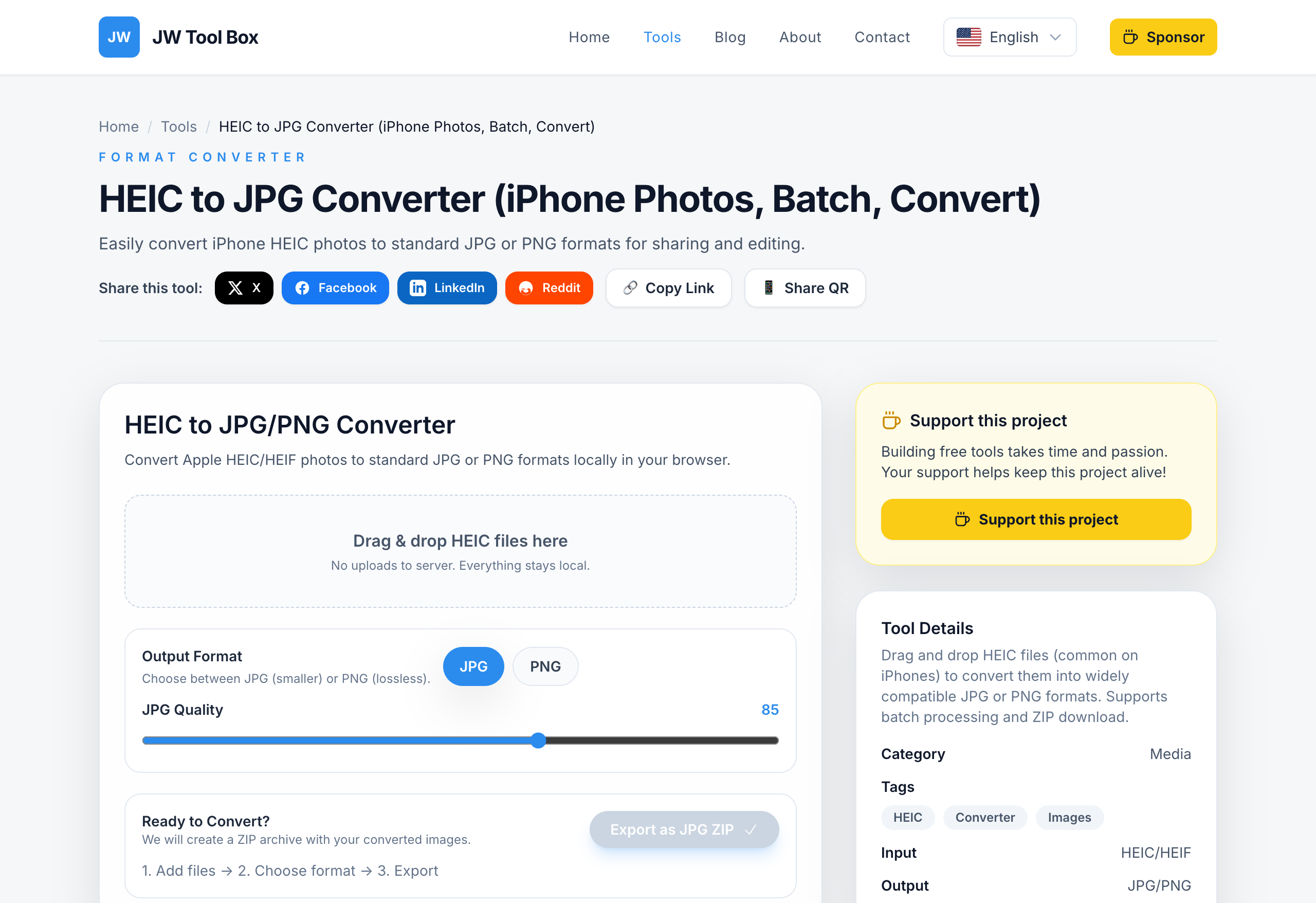
Step 1: Add Your Photos
Open the HEIC Converter. You can drag and drop dozens of .heic or .heif files directly into the dashed box. Because nothing is being uploaded to the internet, you don't have to worry about file size limits or slow upload speeds. The files are securely loaded straight into your browser's temporary memory.
Step 2: Choose Your Format (JPG vs PNG)
Once your images are queued up, you need to decide on the output format.
- Choose JPG if you need universally compatible, small file sizes (great for emails or uploading to web forms). You can safely lower the JPG Quality slider to around 80% to drastically shrink the file size without any noticeable drop in visual quality.
- Choose PNG if you need pixel-perfect, lossless quality and don't care about file sizes being massive.
Step 3: Batch Export
Click Convert & Save as ZIP. Your browser will rapidly crunch through the images one by one. Once finished, it bundles all the freshly minted JPGs into a single .zip file and instantly downloads it to your hard drive.
No waiting in a server queue. No daily limits.
How to Convert HEIC Natively (Mac Users Only)
If you are on a Mac, you actually don't even need a web tool if you only have a few photos to convert. macOS has this built-in:
- Open the HEIC image in the default Preview app.
- Click File in the top menu bar, then select Export...
- Change the "Format" dropdown from HEIC to JPEG.
- Hit Save.
The downside? If you have 50 photos, doing this one by one is infuriating. For batch processing, a dedicated local web tool is significantly faster.
Why is HEIC Even a Thing?
Apple adopted the HEIC (High-Efficiency Image Container) format back in iOS 11 for a very good reason: it is vastly superior to JPG. It can hold twice as much visual data in the exact same file size as a JPG. It supports transparency (like PNG) and can even hold multiple images in one file (which is how Live Photos work).
The problem isn't the format; it's the rest of the tech ecosystem. Windows, Linux, and a massive chunk of older web infrastructure still refuse to read them properly.
Until the rest of the world catches up, keeping a safe, zero-upload local converter bookmarked is the best workaround we have.
About the author
JW Tool Box - Editorial and product review team
JW Tool Box publishes hands-on guides tied directly to the site's browser-based tools. Content is updated when browser behavior, platform rules, or product requirements change in ways that affect real workflows. The goal is to provide practical instructions, tested defaults, and trustworthy reference content instead of thin keyword filler.
Related guides
-
Batch Convert HEIC to JPG Free (No Upload) | 2026 Guide
If you've recently tried to upload an iPhone photo to a job application, a government portal, or even just a school submission system like Canvas, you've probably hit a wall. iPhones use the HEIC format by default because it saves roughly 50% more storage than JPG at the same quality. The frustrating reality in 2026? Windows, most Android devices out of the box, and countless legacy web forms…
-
How to Convert HEIC to JPG Directly on iPhone (and PC/Mac)
If you use an iPhone, you've probably encountered the HEIC format. You take a photo, try to upload it to a website or send it to a Windows PC, and suddenly it's unreadable. "File format not supported" is a frustrating error message. While HEIC (High Efficiency Image Container) is great for saving space on your phone, it's terrible for compatibility. Here is how to convert your HEIC photos to t…
Related tools
Additional browser-based utilities that are closely related to this workflow.
-
Image Compressor (Reduce Size for Web, PNG/JPG/WebP)
Shrink PNG/JPG/WebP files and export optimized assets instantly.
-
Resize Image for Instagram & Facebook (No Quality Loss)
Resize images to exact dimensions and convert to WebP, JPEG, or PNG entirely in your browser.
-
Batch Convert HEIC to JPG — Free iPhone Photo Converter
Batch convert HEIC to JPG or PNG instantly in your browser. No upload, no file limits.