By JW Tool Box
How to Compress Images Free Online Without Losing Quality (2026 Guide)
Speed up your website by optimizing images. Learn how to batch compress PNGs and JPGs directly in your browser.
Why trust this guide
- Written by JW Tool Box around the actual workflow or linked tool on this page.
- Updated when browser behavior, file handling, or platform dimensions change in ways that affect the steps.
- Focused on practical settings, safe defaults, and real tradeoffs instead of generic filler.
Image compression is one of the highest-leverage fixes you can make to a slow website, heavy product gallery, or oversized documentation set. If a page feels sluggish, the problem is often not your code. It is usually a handful of oversized JPGs and PNGs doing unnecessary damage.
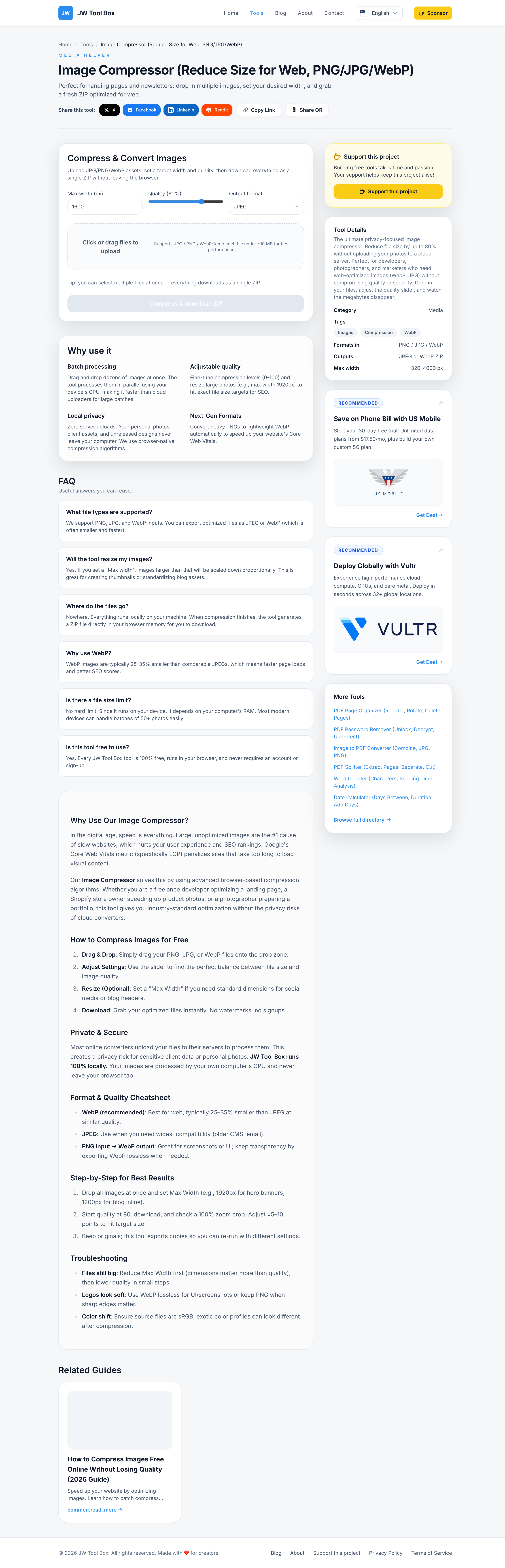
The good news is that you do not need Photoshop, a plugin subscription, or a cloud uploader to fix this. You can compress finished assets directly in the browser with the Image Compressor and keep the original files on your own device.
What Compression Actually Changes
The goal is not "make every file as tiny as possible." The goal is to make images small enough for the real place they will be used while keeping them visually reliable.
In practice, image size usually comes from two things:
- the image is far wider than the layout actually needs
- the format is heavier than necessary for the content type
That is why width and format choice matter just as much as the quality slider.
Pick the Right Output Format First
| Format | Best for | Watch out for |
|---|---|---|
| JPG | photos, product shots, social graphics | text can look soft if quality is too low |
| WebP | most web images, mixed photo and graphic content | older workflows may still expect JPG |
| PNG input | screenshots, logos, transparent assets | often much heavier than needed if exported unchanged |
Rule of thumb:
- Use WebP when the image is going on a website and you want the smallest practical file.
- Use JPG when you need broad compatibility or are preparing images for email, marketplaces, or client uploads.
- Keep transparency in mind. If the original asset relies on transparency, do not blindly export everything as JPG.
A Good Local Compression Workflow
- Open the Image Compressor.
- Add the finished files you actually plan to publish.
- Set a realistic max width based on where the image will appear.
- Start with moderate quality instead of pushing everything to the minimum.
- Download the ZIP and inspect the most detailed images at 100% zoom.
This matters because width reductions often save more than brutal quality loss. A 4000 px export dropped to 1600 px usually beats trying to squeeze the same giant file with an aggressive quality setting.
Starting Presets That Usually Work
| Use case | Suggested format | Suggested quality | Suggested max width |
|---|---|---|---|
| Blog hero image | WebP | 72-80 | 1600-2000 px |
| Product photo | JPG or WebP | 78-86 | 1600-2400 px |
| Documentation screenshot | WebP or PNG input kept crisp | 88-95 | 1400-1800 px |
| Social post | JPG | 76-84 | 1080-1440 px |
| Email newsletter image | JPG | 68-78 | 1200 px |
These are starting points, not laws. If small text looks fuzzy, raise quality or keep more width. If the file is still heavy, reduce width before crushing clarity.
Common Compression Mistakes
- exporting a 300 px image again and expecting a major size win
- saving every screenshot as low-quality JPG even when it contains small text
- keeping 4000 px originals for layouts that display at 800 to 1200 px
- converting transparent artwork to JPG without checking the result
- guessing instead of comparing one or two sample exports first
When To Use Another Tool Instead
- Use Image Resizer first if your real problem is dimensions, not compression.
- Use EXIF Eraser before sharing private photos if metadata is the concern.
- Use How to Compress Images for Shopify and WordPress if you are preparing storefront or CMS assets.
- Use Best Image Compression Settings for Social Media, E-commerce and Resumes if you want preset recommendations for specific channels.
Why Local Processing Is Worth It
Cloud compressors are convenient until the files include unreleased product images, client work, internal screenshots, or personal photos. Local processing removes that trust problem. The browser does the work on your device, and there is no upload step to a third-party queue.
FAQ
Can I compress multiple images at once?
Yes. The tool supports batch processing and downloads the result as a ZIP, which makes it practical for blog libraries, product sets, and social batches.
Will compression hurt SEO?
Done properly, it usually helps SEO because smaller images improve load times. The risk comes from going too low on quality or using images that are too small for the layout.
Should I always use WebP?
Not always. WebP is an excellent default for the web, but JPG may still be the easier choice for certain uploads or legacy workflows.
Can I keep the original files?
You should. Compression is an output step, not a replacement for your source archive. Keep originals if you may need to re-export later.
About the author
JW Tool Box - Editorial and product review team
JW Tool Box publishes hands-on guides tied directly to the site's browser-based tools. Content is updated when browser behavior, platform rules, or product requirements change in ways that affect real workflows. The goal is to provide practical instructions, tested defaults, and trustworthy reference content instead of thin keyword filler.
Related tools
Additional browser-based utilities that are closely related to this workflow.
-
Image Compressor (Reduce Size for Web, PNG/JPG/WebP)
Shrink PNG/JPG/WebP files and export optimized assets instantly.
-
Resize Image for Instagram & Facebook (No Quality Loss)
Resize images to exact dimensions and convert to WebP, JPEG, or PNG entirely in your browser.
-
EXIF & Photo Metadata Eraser (100% Local)
Instantly strip GPS, camera info, and sensitive metadata from photos before sharing online. Runs entirely in your browser.