By JW Tool Box
Best Image Compression Settings for Social Media, E-commerce & Resumes (Free Guide)
The exact widths and quality levels to keep images crisp while shrinking file sizes.
Why trust this guide
- Written by JW Tool Box around the actual workflow or linked tool on this page.
- Updated when browser behavior, file handling, or platform dimensions change in ways that affect the steps.
- Focused on practical settings, safe defaults, and real tradeoffs instead of generic filler.
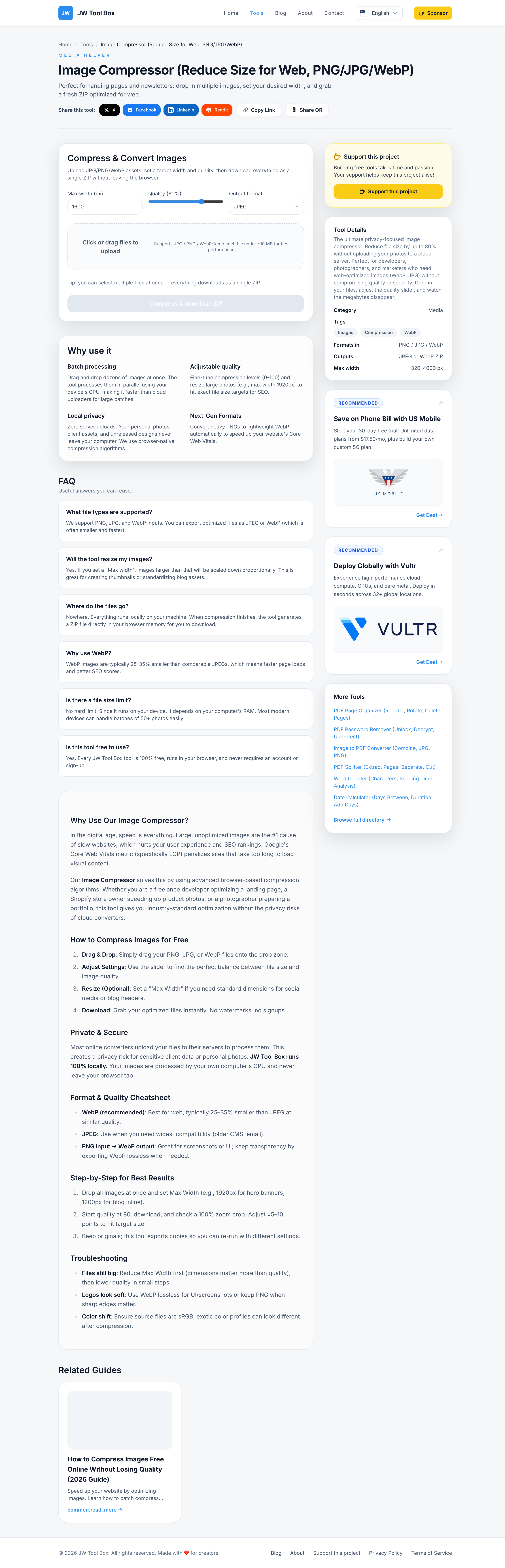
One compression preset does not fit every channel. The settings that work for a Shopify hero image are different from what works for an Instagram story cover or a resume headshot. This guide gives you practical starting points you can use with the Image Compressor without guessing from scratch.
The Fast Rule: Width Matters More Than Most People Think
If a platform displays an image at roughly 1000 to 1500 px, keeping a 4000 px export rarely helps. In most cases the biggest win comes from reducing width first, then fine-tuning quality.
That is why the settings below always include both:
- a target width
- a format recommendation
- a reasonable quality range
Recommended Presets by Use Case
| Use case | Width | Format | Quality | Notes |
|---|---|---|---|---|
| Instagram feed image | 1440 px | JPG or WebP | 0.75-0.8 | Good default for photo-first posts |
| Story / Reel cover | 1080 px | JPG | 0.75-0.8 | Keep text large and centered |
| LinkedIn post graphic | 1350 px | JPG or WebP | 0.75-0.82 | Avoid tiny text |
| Shopify / ecommerce hero | 1800-2200 px | WebP or JPG | 0.8-0.86 | Use the larger end for zoomable product shots |
| Product thumbnail | 800-1200 px | WebP or JPG | 0.7-0.8 | Thumbnails do not need hero dimensions |
| Resume headshot | 600-800 px | JPG | 0.8 | Aim for a clean file under a few hundred KB |
| Documentation screenshot | 1400-1800 px | WebP or PNG input kept crisp | 0.9+ if lossy | Small text needs more care |
| Slide deck image | 1280-1600 px | JPG | 0.75-0.82 | Watch gradients and charts |
How To Apply These Settings
- Open the Image Compressor.
- Add your files in one batch.
- Set the output format based on the table above.
- Enter the recommended max width.
- Start in the middle of the suggested quality range.
- Download the ZIP and inspect the final images where they will really be used.
The last step matters. A product image that looks fine in a file preview may still feel soft on a retina storefront. A resume photo that looks sharp on desktop may still be too heavy for an upload portal with strict file limits.
Quick Quality Check Before Publishing
- zoom to 100% and inspect text edges, faces, and product details
- check one or two dark gradients because compression artifacts show there first
- verify that transparent backgrounds were not flattened by mistake
- confirm that the layout does not display the image much larger than the export size
When To Raise Quality
Raise quality a little if:
- text looks smeared
- lines or interface details look fuzzy
- skin tones or gradients show visible banding
- product textures matter to conversion
When To Lower Width Instead
Lower width first if:
- the image is much wider than the final layout
- the page uses several images and total page weight matters more than perfect zoom detail
- the image is a thumbnail, card image, or secondary asset
FAQ
Should resumes use PNG or JPG?
Usually JPG. Resume headshots do not need transparent backgrounds in most application flows, and JPG keeps file size lower.
What is the safest default for Shopify and WordPress?
For most finished photos, start around 1800 px wide and 0.8 quality, then compare WebP and JPG output.
What about screenshots with tiny text?
Do not over-compress them. Keep more width and higher quality than you would for photography.
About the author
JW Tool Box - Editorial and product review team
JW Tool Box publishes hands-on guides tied directly to the site's browser-based tools. Content is updated when browser behavior, platform rules, or product requirements change in ways that affect real workflows. The goal is to provide practical instructions, tested defaults, and trustworthy reference content instead of thin keyword filler.
Related tools
Additional browser-based utilities that are closely related to this workflow.
-
Image Compressor (Reduce Size for Web, PNG/JPG/WebP)
Shrink PNG/JPG/WebP files and export optimized assets instantly.
-
Resize Image for Instagram & Facebook (No Quality Loss)
Resize images to exact dimensions and convert to WebP, JPEG, or PNG entirely in your browser.