By JW Tool Box
How to Compress Images for Shopify & WordPress Free Online (2026 Guide)
Learn how to reduce image size by up to 80% for faster page loads using our free, private Image Compressor.
Why trust this guide
- Written by JW Tool Box around the actual workflow or linked tool on this page.
- Updated when browser behavior, file handling, or platform dimensions change in ways that affect the steps.
- Focused on practical settings, safe defaults, and real tradeoffs instead of generic filler.
Large images are the #1 silent killer of website performance. Whether you are running a Shopify store or a WordPress blog, heavy PNGs and unoptimized JPGs tank your Core Web Vitals, hurt your SEO rankings, and frustrate mobile users.
But you don't need expensive subscriptions or complex plugins to fix it. Here is how to use our free Image Compressor to shrink your file sizes while keeping your visuals crisp.
Why Image Compression Matters for SEO
Google's algorithms prioritize speed. A site that loads in under 2 seconds ranks significantly higher than one that takes 5 seconds. Images often account for 50-70% of a page's total weight.
- Faster Load Times: Smaller files download quicker, especially on 4G/5G networks.
- Better Conversion Rates: Amazon found that every 100ms of latency cost them 1% in sales.
- Reduced Bandwidth Costs: If you pay for CDN usage, optimizing images saves you money directly.
How to Compress Images Locally (The Private Way)
Most online compressors ask you to upload your files to their servers. This is slow and risky if you are handling sensitive product photos or client assets.
Our Image Compressor runs 100% in your browser. Your images never leave your device.
Step-by-Step Guide:
- Open the Tool: Navigate to the Image Compressor.
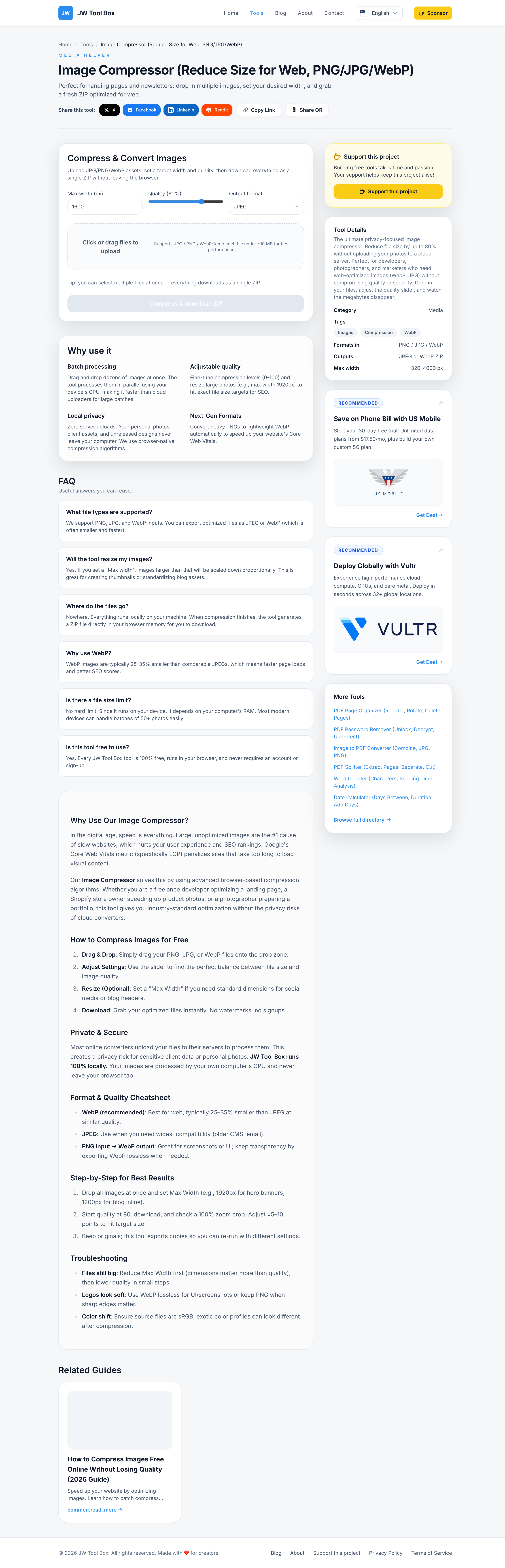
- Drag & Drop: Select your high-res product photos or blog screenshots. Currently supports PNG, JPG, and WebP.
- Adjust Quality:
- For Photos, setting quality to 80% usually reduces size by 60-80% with no visible quality loss.
- For Screenshots, you can often go as low as 70%.
- Set Max Width: Don't upload 4000px wide images if your blog container is only 800px wide. Set
Max Widthto 1920px (for full width) or 1200px (for standard content) to save massive amounts of space. - Choose Format:
- WebP: The modern standard. Smaller than JPG and widely supported. Use this for almost everything.
- JPEG: Use this if you need maximum compatibility with very old browsers.
WebP vs. PNG vs. JPG: What Should You Use?
- PNG: Best for logos, icons, and screenshots with sharp lines. Pro Tip: Use our tool to convert heavy PNG screenshots to WebP.
- JPG (JPEG): Best for complex photography with millions of colors.
- WebP: The "Goldilocks" format. It offers transparency like PNG and small sizes like JPG. We recommend converting everything to WebP for Shopify and WordPress.
Final Checklist for Shopify & WordPress
Before you upload your next product collection or blog post:
- Resize images to logical dimensions (e.g., 2048px max).
- Compress them to under 200KB if possible.
- Convert to WebP using the Image Compressor.
- Rename files with descriptive keywords (e.g.,
red-running-shoes.webpinstead ofIMG_9921.jpg).
Start optimizing your library today with our free, privacy-first Image Compressor and watch your speed scores climb.
About the author
JW Tool Box - Editorial and product review team
JW Tool Box publishes hands-on guides tied directly to the site's browser-based tools. Content is updated when browser behavior, platform rules, or product requirements change in ways that affect real workflows. The goal is to provide practical instructions, tested defaults, and trustworthy reference content instead of thin keyword filler.