By JW Tool Box
How to Compress PDF Files Free Online Without Losing Quality (2026)
Trim PDF size in your browser while keeping text sharp and scans readable.
Why trust this guide
- Written by JW Tool Box around the actual workflow or linked tool on this page.
- Updated when browser behavior, file handling, or platform dimensions change in ways that affect the steps.
- Focused on practical settings, safe defaults, and real tradeoffs instead of generic filler.
We've all been there: you're trying to upload your tax returns, a signed lease agreement, or medical records to a secure portal, only to be hit with a harsh red error message: "File exceeds maximum size of 2MB."
In 2026, despite our devices having terabytes of storage, government portals, HR software, and university submission systems still enforce archaic upload limits. The instinct is to Google "compress PDF" and click the first result. But there's a massive privacy risk: you are uploading your Social Security Number, bank details, and signature to a random remote server.
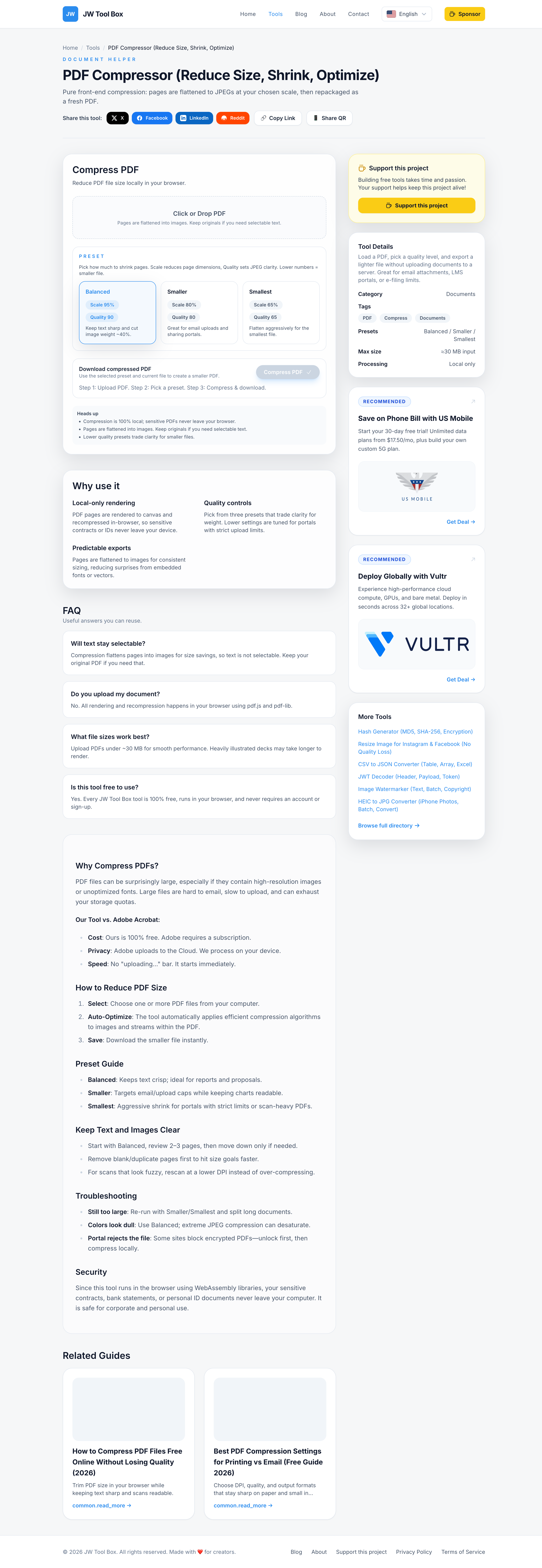
Use the PDF Compressor to shrink files entirely in your browser. No uploads, no waiting for a server, and absolute privacy.
Why Compress Locally in 2026?
- Zero-Trust Privacy: The compressor runs entirely via JavaScript on your own device. Your sensitive contracts and IDs never leave your computer.
- Bypassing Throttling: Cloud compressors often throttle your speed or place you in a "waiting queue" unless you pay a premium subscription. Local compression is instant.
- Micro-Control: Instead of a black-box "High/Medium/Low" setting, you get granular control over the exact pixel width and JPEG quality.
Best settings for different PDFs
- Scanned PDFs (images only): keep resolution between 150–200 DPI and medium quality. Avoid very low quality or small widths; text will smear.
- Mixed text + images: set a max width (e.g., 1920 px) and medium quality. Text stays vector, images get resized.
- Slide decks: cap width at 1600 px and medium-high quality to keep gradients clean.
- Receipts/invoices: width 1400–1600 px, medium quality. Do not over-compress barcodes or QR codes.
Step-by-step
- Open the PDF Compressor.
- Drop your PDF or click to select it.
- Pick Max Width (try 1920 px for large scans, 1600 px for slides).
- Choose Quality: start with 0.6–0.75 for most files.
- Click Compress and download the new PDF.
Troubleshooting common issues
- Pages look fuzzy: increase quality slightly or raise the max width by 200–400 px.
- File still too big: lower quality in small steps (0.05) or reduce max width; do not jump straight to the lowest setting.
- Colors look dull: bump quality to 0.8 for slides with gradients or photos.
- Secure PDFs: if the file is locked, unlock it first with the PDF Lock/Unlock tool.
Quick benchmarks to aim for
- 5–10 page scanned PDF: often drops from 8–12 MB to 2–4 MB with width 1800 px, quality 0.7.
- 20+ page slide deck: from 15–25 MB to 5–8 MB with width 1600 px, quality 0.65.
- Receipts bundle: from 3–6 MB to under 2 MB with width 1500 px, quality 0.7.
Keep a copy of the original for archival, and iterate once or twice to find the sweet spot. With local compression you keep control, speed, and privacy.
About the author
JW Tool Box - Editorial and product review team
JW Tool Box publishes hands-on guides tied directly to the site's browser-based tools. Content is updated when browser behavior, platform rules, or product requirements change in ways that affect real workflows. The goal is to provide practical instructions, tested defaults, and trustworthy reference content instead of thin keyword filler.