By JW Tool Box
How to Convert Screenshots to PDF Free (Invoices & Receipts 2026)
Bundle multiple screenshots into a tidy, printable PDF without uploads. Perfect for expense reports, proof of purchase, and invoice packages.
Why trust this guide
- Written by JW Tool Box around the actual workflow or linked tool on this page.
- Updated when browser behavior, file handling, or platform dimensions change in ways that affect the steps.
- Focused on practical settings, safe defaults, and real tradeoffs instead of generic filler.
Receipt screenshots pile up across your camera roll, downloads folder, and email attachments. When your accountant asks for expense documentation or your employer needs proof-of-purchase, combining them into a single, professional PDF is far better than sending a bundle of loose image files.
This guide shows you how to convert screenshots to a clean PDF entirely in your browser—no upload, no watermark, no account.
⚡ Quick Start
→ Images to PDF — drop your screenshots, choose page layout, download PDF.
Why PDF Instead of Separate Images?
- Professional presentation: Finance and HR teams expect single-document expense reports
- Easy to email: One attachment vs. 12 loose PNG files
- Printable: PDF prints cleanly with consistent margins; raw screenshots often print with missing edges or wrong scale
- Searchable text (if your screenshots contain text and you use a high enough quality setting)
- Consistent orientation: The tool auto-fits portrait and landscape screenshots to the right page direction
Step 1: Capture Clean Screenshots
Before converting, get your screenshots organized:
- Full-page captures: Use full-height captures when possible. Avoid partial screenshots that cut off total amounts or date lines
- Correct orientation: Rotate sideways screenshots before dropping them in — upright images produce smaller file sizes and look cleaner
- Consistent naming: Number or date your files before converting so they sort correctly (
receipt-01.png,receipt-02.png) - Remove irrelevant captures: Delete screenshots of notifications or unrelated windows from your batch
Step 2: Convert Screenshots to PDF
- Open Images to PDF
- Drop your screenshots (PNG, JPG, or WebP). You can drop multiple files at once
- Choose page size: A4 (international) or Letter (US standard). Both work for printing
- Set orientation: Portrait for vertical screenshots; Landscape for horizontal ones. Or use "Auto" to let the tool decide per image
- The tool auto-scales each image to fit the page with standard margins
- Click Export PDF and download
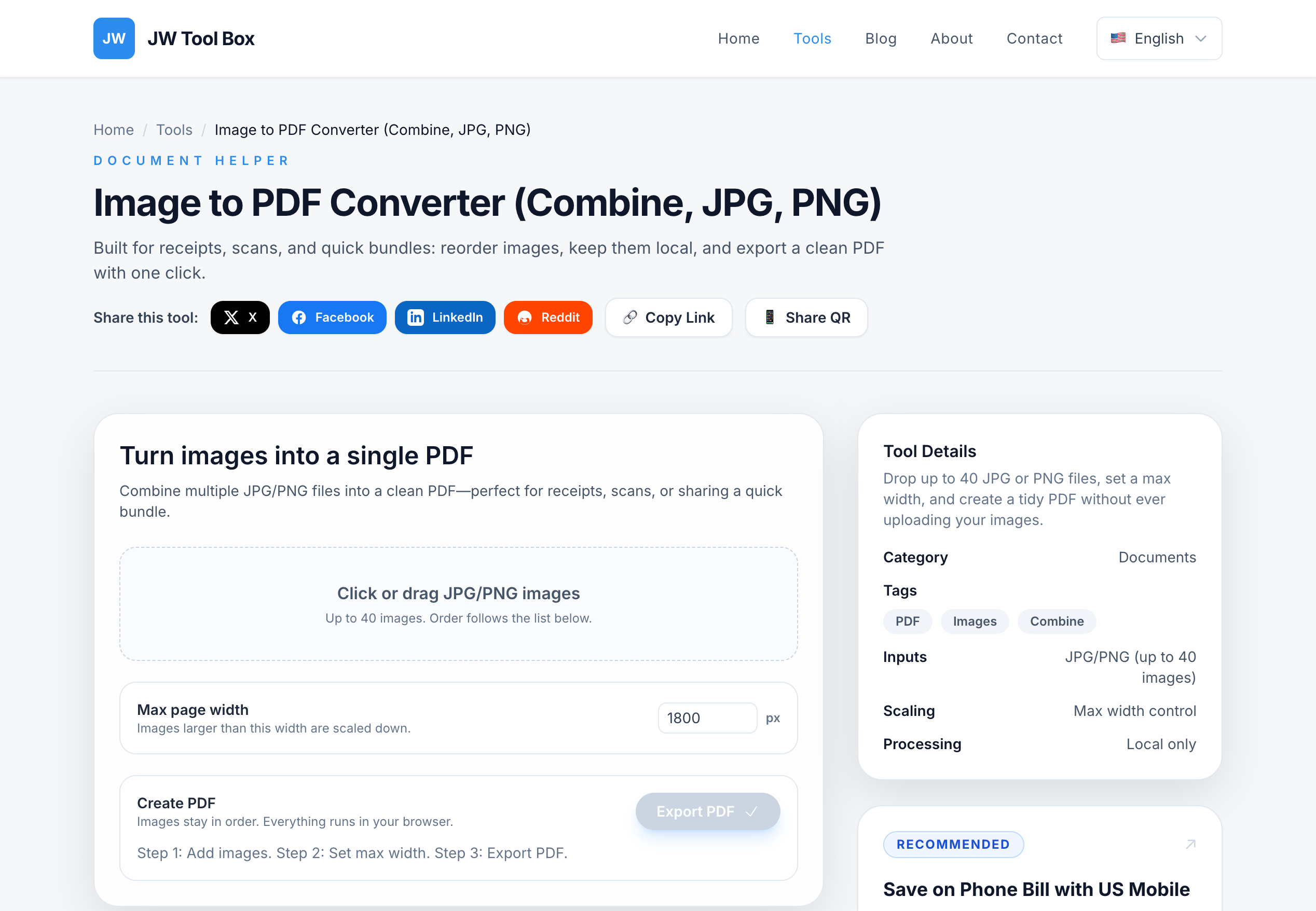
Each screenshot becomes one page in the PDF. The order in the tool matches the order in the PDF.
Step 3: Combine Multiple PDFs (If Needed)
If you've already created several separate PDFs (or have some pre-existing PDF receipts to combine):
- Open PDF Merge
- Drop all your PDFs (the one from step 2 plus any pre-existing PDFs)
- Reorder using the arrow buttons if needed
- Click Merge PDFs and download the consolidated file
Step 4: Reduce File Size (If Too Large)
A bundle of 20 high-resolution screenshots can produce a 20–40MB PDF — too large to email easily. If your resulting PDF is over 5MB:
- Open PDF Compressor
- Set image width to 1500–1800 px (keeps text readable for standard receipts)
- Set quality to 0.7–0.8 (keeps amounts and dates clearly legible at 100% zoom)
- Compress and download
Don't go below quality 0.6 or width 1200px for receipts — small text and numbers become unreadable.
Quick Checklist for Professional Expense Reports
- [ ] Screenshots oriented correctly (no sideways invoices)
- [ ] Amounts, dates, and vendor names clearly visible at 100% zoom
- [ ] Time-sensitive or earliest receipts appear first in the document
- [ ] File size is under 10MB for email, under 5MB for submission portals
- [ ] Output file named clearly:
2026-02-expenses-john-smith.pdf
Common Use Cases
Expense Reports
Most employers require physical or PDF copies of receipts. Screenshots from Amazon, Uber, Airbnb, hotel booking sites, and restaurant apps convert cleanly.
Proof of Purchase for Warranty Claims
Screenshots of order confirmation emails and payment confirmations are legally valid in most jurisdictions. Compile them into one PDF for warranty submissions.
Freelancer Invoicing
If you've generated individual invoice screenshots or exported separate PDFs, merge them into a single package for your accountant at year end.
Legal Documentation
Screenshots of contracts, confirmations, or communication records packaged into a PDF create a cleaner paper trail than loose files.
Privacy: Why Local Processing Matters for Financial Documents
Financial screenshots contain sensitive data: account numbers, transaction IDs, purchase history, business expenses. When you upload these to cloud-based converters:
- The service temporarily stores your files on their servers
- Privacy policies often allow internal use of uploaded content
- Government compliance requirements may vary
JW Tool Box converts entirely in your browser. Your screenshots are processed by your own device's memory — nothing is transmitted.
Frequently Asked Questions
What image formats are supported?
PNG, JPG, and WebP. Most screenshots from phones and computers are PNG by default.
Can I reorder the pages after importing?
You can reorder the images in the Images to PDF tool before exporting. Drag to reorder, or simply add them in the correct order initially.
Will the PDF be searchable (OCR)?
No — this tool embeds the screenshots as images in the PDF. The text in the screenshots is not searchable or selectable. For searchable PDFs, you need an OCR tool (like Adobe Acrobat or Google Drive's PDF viewer).
What if screenshots are different sizes?
The tool scales each image to fit the page uniformly. A phone screenshot (1080×1920) and a desktop screenshot (1920×1080) will both print cleanly on the same page size.
Is there a limit on how many screenshots I can convert?
No hard limit — it depends on your device's memory. 50–100 screenshots in a single batch is easily manageable on modern hardware.
Can I merge images and existing PDFs together?
Not in a single step. Use Images to PDF first, then combine the result with existing PDFs using the PDF Merge tool.
Next time you're staring at 15 loose receipt screenshots before a reimbursement deadline, use Images to PDF + PDF Merge to package them in under a minute.
About the author
JW Tool Box - Editorial and product review team
JW Tool Box publishes hands-on guides tied directly to the site's browser-based tools. Content is updated when browser behavior, platform rules, or product requirements change in ways that affect real workflows. The goal is to provide practical instructions, tested defaults, and trustworthy reference content instead of thin keyword filler.
Related tools
Additional browser-based utilities that are closely related to this workflow.
-
PDF Merger (Combine, Join, Binder)
Combine multiple PDF documents without leaving your browser.
-
PDF Compressor (Reduce Size, Shrink, Optimize)
Shrink PDF size with browser-only rasterization and quality presets.
-
Image to PDF Converter (Combine, JPG, PNG)
Combine multiple JPG/PNG images into one PDF instantly.