By JW Tool Box
SVG to PNG Converter Online Free: High-Resolution Export Tool (2026)
Learn how to convert SVG vector graphics to high-resolution PNG images using our free online converter tool. Supports transparency, custom scaling, and works entirely in your browser.
Why trust this guide
- Written by JW Tool Box around the actual workflow or linked tool on this page.
- Updated when browser behavior, file handling, or platform dimensions change in ways that affect the steps.
- Focused on practical settings, safe defaults, and real tradeoffs instead of generic filler.
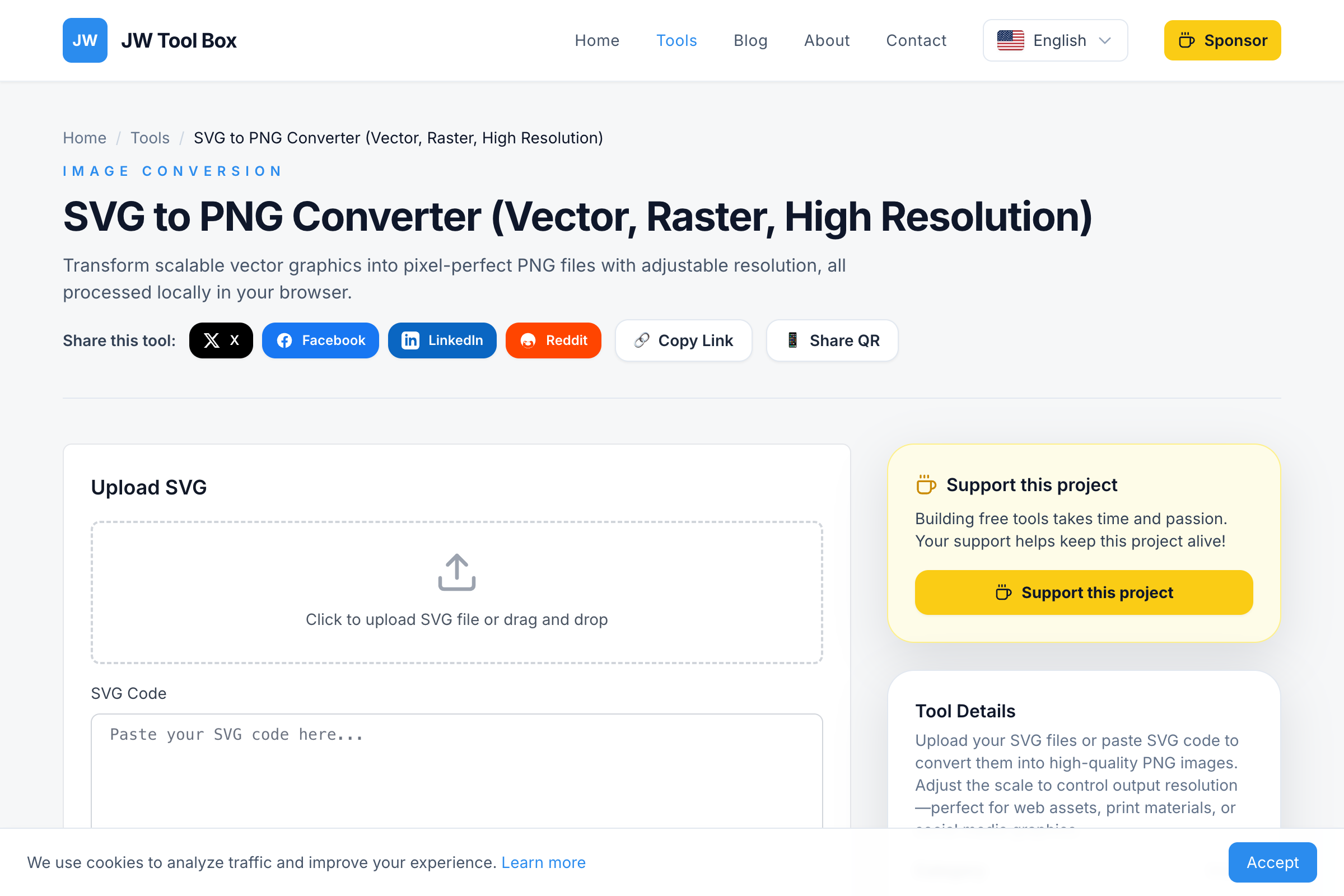
Need to convert an SVG file to PNG format? Our free SVG to PNG Converter tool transforms vector graphics into high-quality raster images directly in your browser—no uploads, no signups, and no quality loss.
Why Convert SVG to PNG?
SVG (Scalable Vector Graphics) is perfect for logos and icons on the web, but many platforms don't accept SVG files:
- Email signatures require raster formats like PNG or JPG
- Social media platforms (Facebook, LinkedIn, Twitter) don't display SVG
- Microsoft Office (Word, PowerPoint) has limited SVG support
- Older software and CMS platforms may not render SVG correctly
- Print shops sometimes require raster formats for certain workflows
How to Convert SVG to PNG Online
Converting your SVG files is simple with our free tool:
- Open the Tool: Go to the SVG to PNG Converter
- Upload or Paste: Either upload an
.svgfile or paste your SVG code directly - Choose Scale: Select 1x to 5x scaling for your desired resolution
- Preview: See the converted PNG in real-time
- Download: Click to save your high-quality PNG file
Understanding Scale Factor
The scale factor determines your output resolution:
| Scale | Use Case | Example (100×100 SVG) |
|---|---|---|
| 1x | Web icons, thumbnails | 100×100 px |
| 2x | Retina displays, HiDPI screens | 200×200 px |
| 3x | High-quality web graphics | 300×300 px |
| 4x | Print materials (300 DPI) | 400×400 px |
| 5x | Large format printing | 500×500 px |
Pro tip: For print at 300 DPI, use 3x or 4x scale. For web use, 2x ensures crisp display on retina screens.
Key Features of Our Converter
🔒 100% Private - No Upload Required
Unlike most online converters that upload your files to a server, our tool runs entirely in your browser. Your SVG code never leaves your device, making it safe for:
- Proprietary logos and brand assets
- Confidential design mockups
- Client work under NDA
🎨 Transparent Background Support
If your SVG has a transparent background, the exported PNG preserves it perfectly. This is essential for:
- Logos that need to overlay different backgrounds
- Icons for apps and websites
- Graphics for presentations and documents
⚡ Instant Conversion
No waiting for server processing. The conversion happens instantly using your browser's Canvas API. Convert dozens of files in seconds.
Common SVG to PNG Questions
What's the maximum file size I can convert?
There's no hard limit, but very complex SVGs with thousands of paths may take longer to render. For best performance, keep SVGs under 5MB.
Why is my PNG file larger than the original SVG?
SVG is a vector format (math-based), while PNG is a raster format (pixel-based). High-resolution PNGs store color data for every pixel, which requires more storage than vector instructions.
Can I convert animated SVGs?
This tool captures the first frame of animated SVGs. For animated content, you would need a tool that exports to GIF or APNG format.
Does it work with SVG code from Figma or Illustrator?
Yes! You can copy SVG code directly from design tools and paste it into the converter. The tool handles all standard SVG elements and attributes.
When to Keep SVG Instead
While PNG is widely compatible, consider keeping SVG format when:
- You need infinite scalability (logos on websites)
- File size is critical (SVG is often smaller)
- You want to animate the graphic with CSS/JS
- The image will be displayed at many different sizes
Try It Now
Ready to convert your SVG files? Our SVG to PNG Converter is free, fast, and completely private. No signup required—just paste your SVG and download your PNG.
About the author
JW Tool Box - Editorial and product review team
JW Tool Box publishes hands-on guides tied directly to the site's browser-based tools. Content is updated when browser behavior, platform rules, or product requirements change in ways that affect real workflows. The goal is to provide practical instructions, tested defaults, and trustworthy reference content instead of thin keyword filler.