By JW Tool Box
How to Shrink and Resize Photos for Instagram, TikTok, and X
Why trust this guide
- Written by JW Tool Box around the actual workflow or linked tool on this page.
- Updated when browser behavior, file handling, or platform dimensions change in ways that affect the steps.
- Focused on practical settings, safe defaults, and real tradeoffs instead of generic filler.
Have you ever taken the perfect photo, only to have Instagram crop out the best part or TikTok make it look blurry? You're not alone. Each social media platform has strict requirements for image dimensions and file sizes. If you don't shrink or resize your photos correctly, the platforms will do it for you—often with poor results.
In this guide, we'll cover exactly how to resize your images for the biggest platforms and how to use our free tools to do it in seconds.
Why You Need to Resize and Shrink Photos
- Avoid Auto-Cropping: If your aspect ratio is wrong (e.g., uploading a landscape photo to an Instagram Story), the app will zoom in, cutting off the edges.
- Prevent Blurriness: If your image is too small, it gets stretched. If it's too huge, the platform's compression algorithm crushes it, making it look pixelated.
- Faster Uploads: "Shrinking" usually refers to reducing the file size (MB). Smaller files upload faster and save data.
Quick Size Guide (2025)
- Stories / Reels: 1080 x 1920 px (9:16 aspect ratio)
- Square Post: 1080 x 1080 px (1:1)
- Portrait Post: 1080 x 1350 px (4:5) - Best for engagement!
TikTok
- Profile Photo: 200 x 200 px
- Video/Photo Slideshow: 1080 x 1920 px (9:16)
X (Twitter)
- In-Stream Photo: 1600 x 900 px (recommended)
- Header Image: 1500 x 500 px
- Profile Picture: 400 x 400 px
How to Resize Photos for Free
You don't need expensive software like Photoshop just to crop a photo for TikTok.
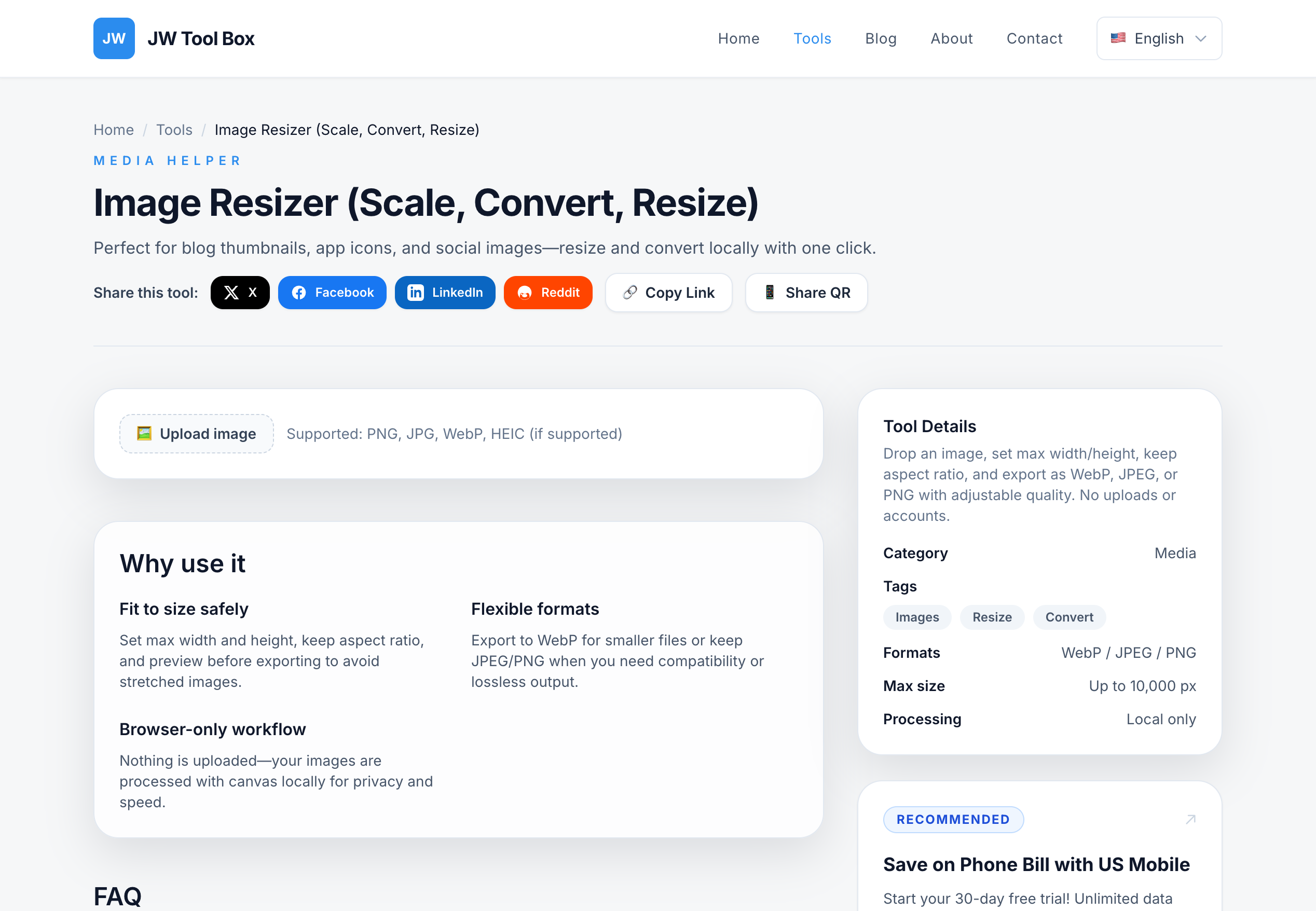
- Go to our Free Image Resizer.
- Upload your photo.
- Enter the dimensions (e.g., 1080 width) or select a percentage.
- Download your perfectly sized image.
How to Shrink Photo File Size
If you need to reduce the file size (e.g., to under 5MB) without changing the dimensions:
- Use the Image Compressor.
- Upload your image (JPG, PNG, or WebP).
- Adjust the quality slider. A setting of 0.8 (80%) usually reduces file size by 50-70% with no visible quality loss.
- Download the lighter file.
By taking control of your image sizes, you ensure your content looks professional and crisp on every feed.
About the author
JW Tool Box - Editorial and product review team
JW Tool Box publishes hands-on guides tied directly to the site's browser-based tools. Content is updated when browser behavior, platform rules, or product requirements change in ways that affect real workflows. The goal is to provide practical instructions, tested defaults, and trustworthy reference content instead of thin keyword filler.
Related tools
Additional browser-based utilities that are closely related to this workflow.
-
Image Compressor (Reduce Size for Web, PNG/JPG/WebP)
Shrink PNG/JPG/WebP files and export optimized assets instantly.
-
Resize Image for Instagram & Facebook (No Quality Loss)
Resize images to exact dimensions and convert to WebP, JPEG, or PNG entirely in your browser.