By JW Tool Box
Free QR Code Generator: Create High-Quality, Print-Ready Codes (2026)
Why trust this guide
- Written by JW Tool Box around the actual workflow or linked tool on this page.
- Updated when browser behavior, file handling, or platform dimensions change in ways that affect the steps.
- Focused on practical settings, safe defaults, and real tradeoffs instead of generic filler.
Most "free" QR code generators are a trap. You create a code, print 1,000 flyers, and a week later the code stops working unless you pay a monthly subscription.
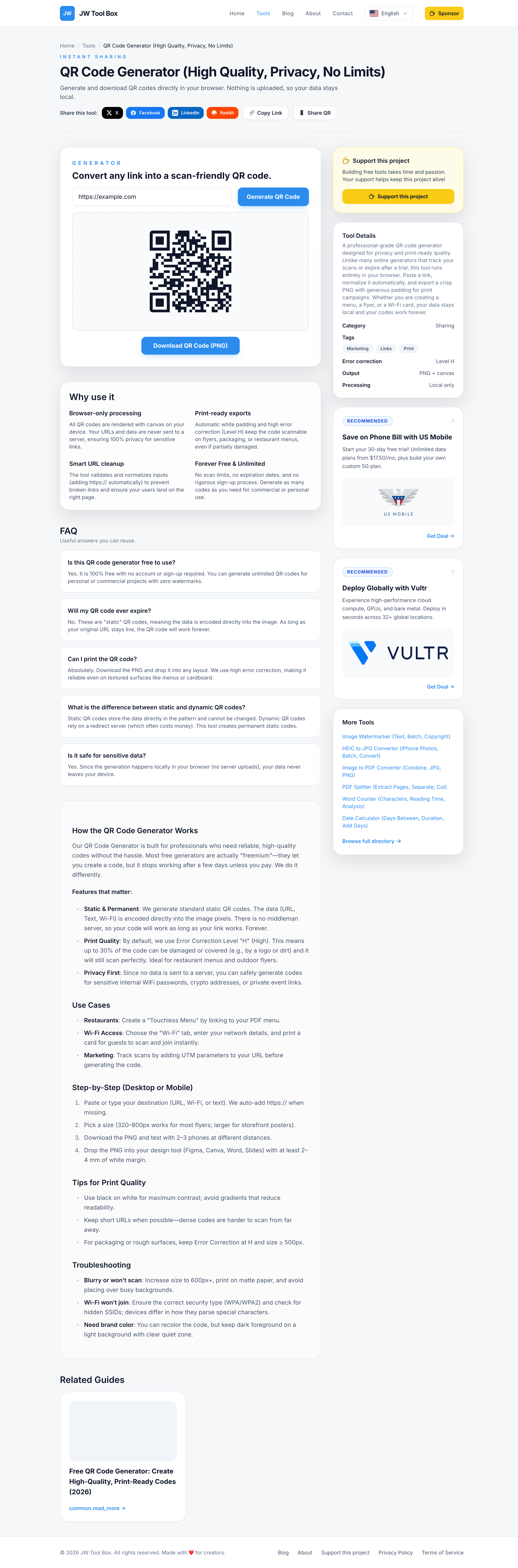
JW Tool Box QR Code Generator is different. We generate Static QR Codes that:
- Never Expire: The link is stored in the code itself, not on our servers.
- Have No Scan Limits: Scan it 1 million times, it will still work.
- Are 100% Private: The code is generated in your browser. We don't track your data.
Why You Need a "Print-Ready" QR Code
If you are printing a QR code on a menu, business card, or billboard, quality matters. A blurry code won't scan.
Our tool uses High Error Correction (Level H) by default. This means up to 30% of the code can be damaged (scratched, covered by a logo, or distorted) and it will still scan perfectly. This is essential for physical marketing materials.
How to Create a Wi-Fi QR Code (No Password Typing!)
One of the best uses for QR codes is sharing Wi-Fi access. Instead of spelling out a complex password for guests:
- Open the QR Code Generator.
- Select the Wi-Fi tab (if available) or use the standard text format:
WIFI:S:MyNetworkName;T:WPA;P:MyPassword;; - Print the code and frame it in your living room or office.
- Guests scan it with their iPhone or Android camera and join instantly.
Static vs. Dynamic QR Codes: What's the Difference?
- Dynamic Codes (The Trap): The QR code points to a redirect server (e.g.,
qr.co/123). The provider can change where it points, but they can also shut it off if you don't pay. - Static Codes (Our Tool): The QR code contains the actual destination (e.g.,
https://yoursite.com). It connects directly. It cannot be changed after printing, but it is yours forever.
Best Practices for Printing QR Codes
- Contrast is King: Always use a dark code on a light background. Inverting colors (white code on black) often confuses scanners.
- Size Matters: For a standard URL, the code should be at least 2x2 cm (0.8x0.8 inches).
- Test Before You Print: Scan the code on your screen with multiple devices (iOS and Android) before sending it to the printer.
Stop paying for temporary codes. Create your Permanent QR Code now for free.
About the author
JW Tool Box - Editorial and product review team
JW Tool Box publishes hands-on guides tied directly to the site's browser-based tools. Content is updated when browser behavior, platform rules, or product requirements change in ways that affect real workflows. The goal is to provide practical instructions, tested defaults, and trustworthy reference content instead of thin keyword filler.
Related tools
Additional browser-based utilities that are closely related to this workflow.
-
QR Code Generator (High Quality, Privacy, No Limits)
Create high-contrast, scan-friendly QR codes for URLs, Wi-Fi, and text instantly.
-
URL Encoder & Decoder (Percent-encoding, Decode, Escape)
Encode or decode URL strings instantly. Fix broken links and debug query parameters.