By JW Tool Box
How to Convert Images to Base64 Online for Faster Web Loading (Free Tool)
Learn how to reduce HTTP requests and speed up your site by converting small icons and logos into Base64 strings.
Why trust this guide
- Written by JW Tool Box around the actual workflow or linked tool on this page.
- Updated when browser behavior, file handling, or platform dimensions change in ways that affect the steps.
- Focused on practical settings, safe defaults, and real tradeoffs instead of generic filler.
Every time a user visits your website, their browser has to make a separate request for every single image file. If your site has dozens of small icons, logos, or UI elements, these requests can pile up and slow down your page load time.
One powerful optimization technique is Base64 encoding. By converting your images into text strings and embedding them directly into your HTML or CSS, you can eliminate those extra network requests entirely.
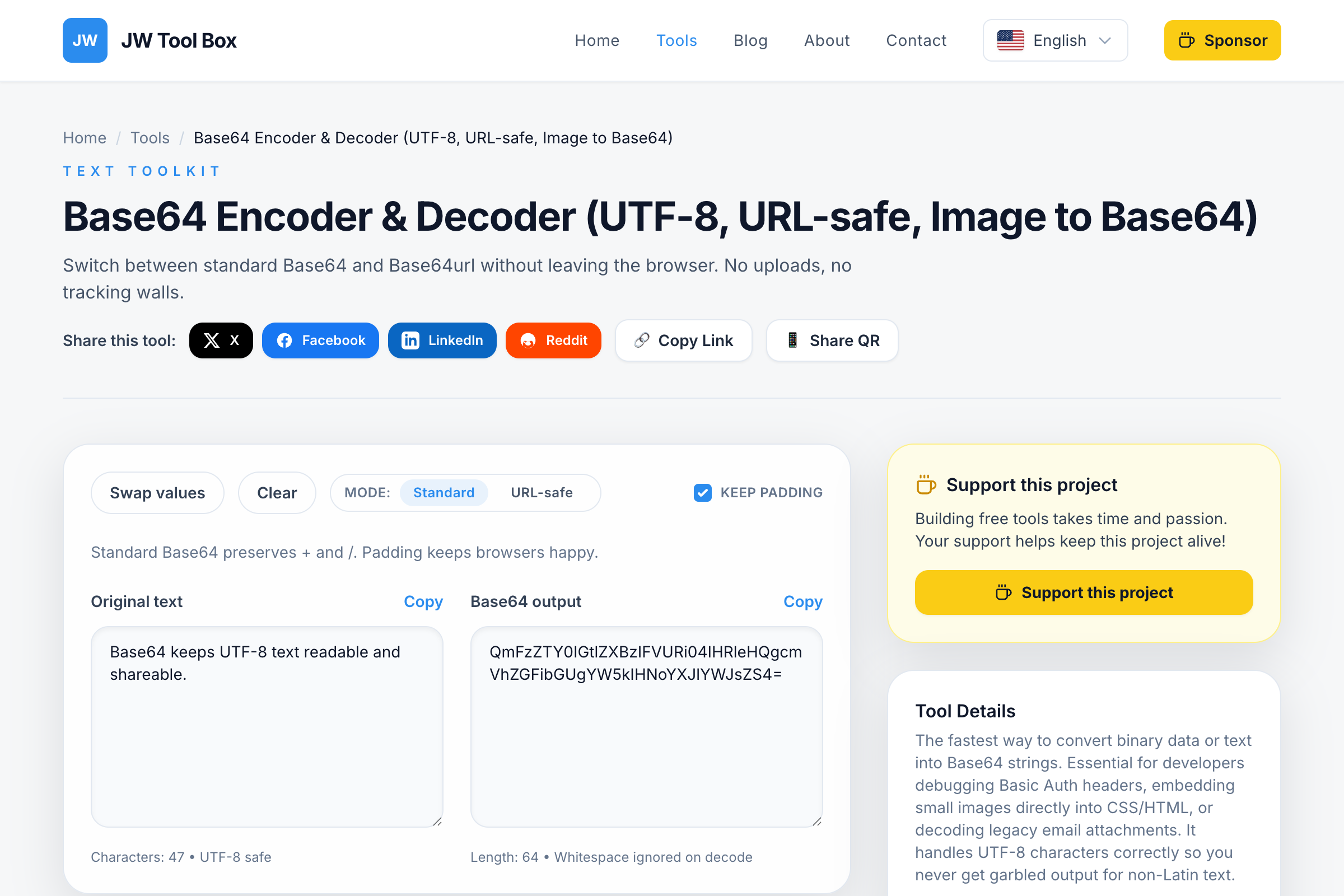
Use our free Base64 Encoder & Decoder to instantly convert your files.
What is Base64 Encoding?
Base64 is a way to represent binary data (like an image file) using only ASCII text characters. When you convert an image to Base64, you get a long string of random-looking letters and numbers that represents the image data.
You can use this string in a "Data URI" to display the image without a separate file:
<!-- Standard Image (Requires a network request) -->
<img src="logo.png" alt="Logo" />

<!-- Base64 Image (No network request needed!) -->
<img src="data:image/png;base64,iVBORw0KGgoAAAANSUhEUgAAAAU..." alt="Logo" />
When Should You Use Base64?
Base64 isn't a magic bullet for everything. It increases the file size of the image by about 33%, so it's best used strategically:
- ✅ Good for: Small icons, logos, placeholders, and tiny UI graphics (under 10KB).
- ❌ Bad for: Large photos, hero images, or backgrounds. The increased file size will hurt performance more than the saved request helps.
How to Convert an Image to Base64
- Open the Base64 Encoder Tool.
- Click the "Image to Base64" tab (or simply drag and drop your file).
- The tool will automatically generate the full HTML
<img>tag or the CSSbackground-imagecode for you. - Copy and paste it directly into your project!
SEO & Performance Benefits
- Fewer HTTP Requests: Browsers have a limit on how many parallel connections they can make. Removing small image requests frees up the browser to load your critical content faster.
- No Broken Images: Since the image data is embedded in the code, you never have to worry about a file being deleted or a broken link.
- Instant Rendering: The image loads instantly with the HTML, preventing "layout shift" where icons pop in after the text.
Ready to optimize your assets? Try the Base64 Encoder now.
Frequently Asked Questions (FAQ)
Does converting an image to Base64 reduce quality?
No. Base64 encoding is lossless. It simply changes the representation of the data from binary to text. When the browser decodes it, the image is pixel-perfectly identical to the original.
Is Base64 faster than loading an image file?
For very small images (like icons), yes. It saves the time of the "handshake" required for a new network request. However, for large images, Base64 strings are about 33% larger in file size than the original binary, which can actually slow down your page if overused.
How do I decode a Base64 string back to an image?
Simply paste your Base64 string into the "Decoder" tab of our Base64 Tool, and it will instantly preview the image and let you download it as a file.
About the author
JW Tool Box - Editorial and product review team
JW Tool Box publishes hands-on guides tied directly to the site's browser-based tools. Content is updated when browser behavior, platform rules, or product requirements change in ways that affect real workflows. The goal is to provide practical instructions, tested defaults, and trustworthy reference content instead of thin keyword filler.