By JW Tool Box
Diff Checker Online: Compare Two Texts or Files and Find Differences (Free 2026)
Why trust this guide
- Written by JW Tool Box around the actual workflow or linked tool on this page.
- Updated when browser behavior, file handling, or platform dimensions change in ways that affect the steps.
- Focused on practical settings, safe defaults, and real tradeoffs instead of generic filler.
TL;DR — Paste two versions of any text, code, or document into the Diff Checker → and see every addition, deletion, and change highlighted instantly. Runs locally — nothing gets uploaded.
Ever spent an hour squinting at two versions of a document trying to find what changed? Whether it's a lawyer who swapped "30 days" for "60 days" in a contract, a colleague who "made a few small edits" to your blog post, or a Git merge conflict you need to untangle — manually scanning for differences is slow and error-prone.
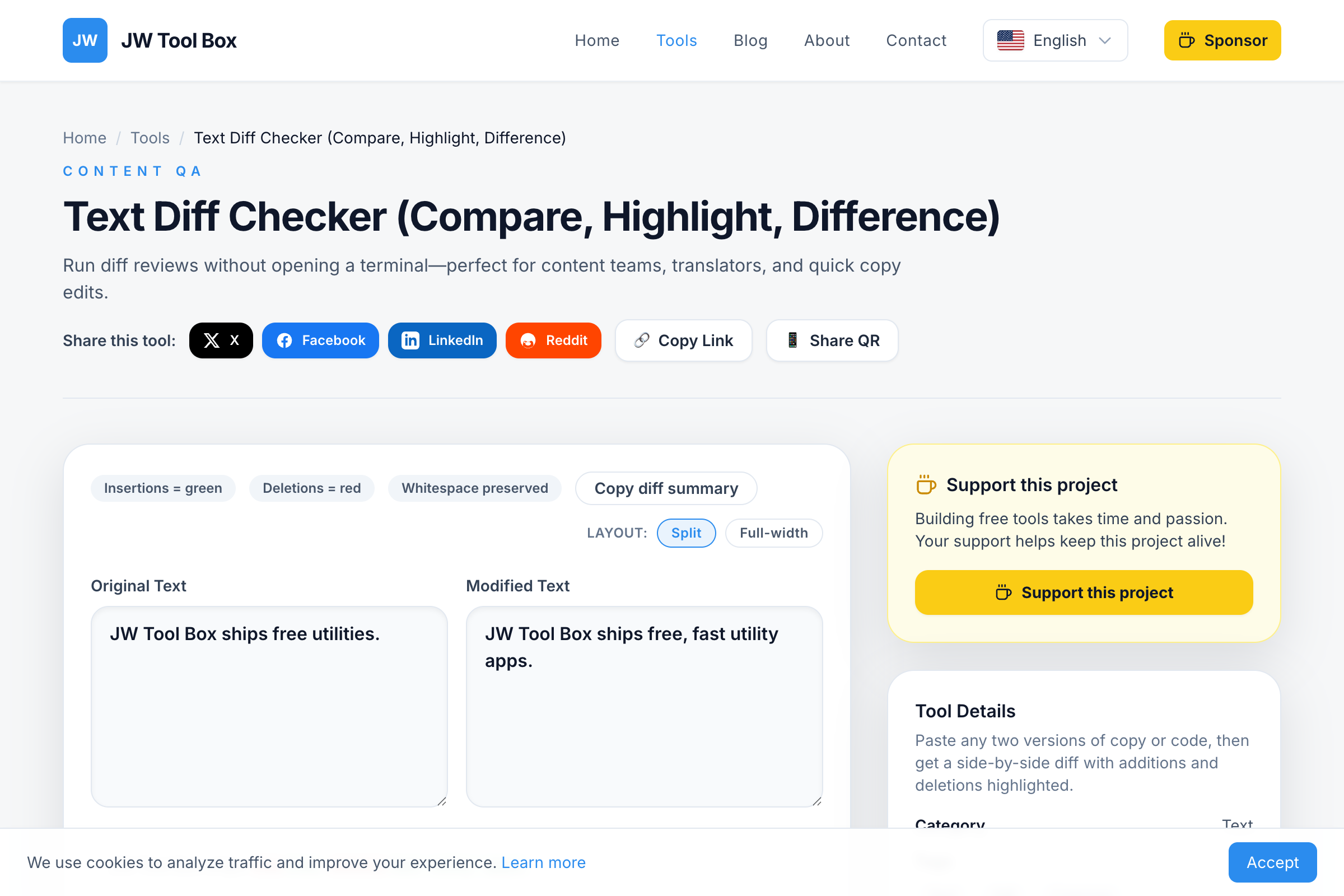
JW Tool Box Text Diff Checker highlights additions, deletions, and changes instantly—no terminal commands, no complex software, just paste and compare.
What is a Diff Checker?
A "diff" (short for difference) is a comparison between two versions of text that shows what was added, removed, or changed. Originally a Unix command-line tool, diff checking is now essential for:
- Version control (Git, SVN)
- Content editing (Contracts, blog posts)
- Translation QA (Original vs. translated text)
- Code reviews (Before and after refactoring)
When You Need a Text Diff Checker
1. Reviewing Document Edits
Scenario: Your client sends back a "slightly revised" contract. Is it really just a few typos, or did they change a critical clause?
Paste both versions into the diff checker. Changes like "30-day payment terms" becoming "60-day payment terms" will be highlighted in red/green, making them impossible to miss.
2. Comparing Code Before and After Refactoring
Scenario: You refactored a function to improve performance. Before merging, you want to verify only the intended lines changed.
Instead of visually scanning 200 lines of code, the diff checker shows exactly which lines were modified—and catches accidental changes you didn't intend.
3. Translation Quality Assurance
Scenario: You have an English source document and a Spanish translation. You want to ensure the translator didn't skip any paragraphs.
Compare the structure (headers, paragraph breaks, bullet points) between both versions. While the words differ, the structure should match.
4. Tracking Content Changes Over Time
Scenario: Your website's Terms of Service was updated. You need to document what changed for legal compliance.
Keep a copy of the old version. When updates are made, run a diff to create a clear record of all modifications.
How to Read a Diff
Our diff checker uses a standard color scheme:
| Color | Meaning |
|---|---|
| 🟢 Green | Added – New text that wasn't in the original |
| 🔴 Red | Deleted – Text that was removed |
| ⚪ Gray | Unchanged – Context that stayed the same |
Example:
Original:
The quick brown fox jumps over the lazy dog.
Revised:
The quick red fox leaps over the lazy cat.
Diff output:
- "brown" → deleted (red)
- "red" → added (green)
- "jumps" → deleted (red)
- "leaps" → added (green)
- "dog" → deleted (red)
- "cat" → added (green)
Tips for Effective Diff Checking
Tip 1: Normalize Whitespace First
Extra spaces or different line endings (Windows vs. Mac) can create false positives. If you're seeing too many "changes" that look identical, clean up whitespace first.
Tip 2: Break Large Documents into Sections
Comparing a 50-page document all at once is overwhelming. Split it by chapter or section for more manageable comparisons.
Tip 3: Use for Proofreading
After writing a draft and making edits, run a diff between your first and final versions. This helps you:
- See all the improvements you made
- Catch accidental deletions (Did you remove that paragraph on purpose?)
- Review the evolution of your writing
Tip 4: Compare API Responses
Debugging an API? Save the response from yesterday and today, then diff them. This reveals:
- New fields that were added
- Values that changed unexpectedly
- Fields that were removed
Privacy: Your Text Stays Local
Many online diff tools upload your text to their servers for processing. This is a privacy risk for:
- Confidential contracts
- Proprietary code
- Personal documents
JW Tool Box Text Diff Checker runs entirely in your browser. The comparison algorithm executes locally using JavaScript—your text never leaves your device.
Frequently Asked Questions
How do I compare two text files online for free?
Copy the contents of your first file, paste it into the "Original" box. Then paste the second file into the "Modified" box. Our free text diff checker instantly highlights all differences.
What's the best way to compare two Word documents?
Copy the text from each Word document (Ctrl+A, Ctrl+C) and paste them into our online diff tool. This works better than Word's built-in compare feature for quick checks.
Can I compare code files with this tool?
Yes! Our diff checker works with any text including HTML, CSS, JavaScript, Python, JSON, and SQL. It preserves whitespace and formatting for accurate code comparison.
Is this diff checker tool free to use?
Absolutely. Our text comparison tool is 100% free with no word limits, no registration required, and no watermarks. Use it as many times as you need.
How do I find differences between two Excel spreadsheets?
Export each spreadsheet as CSV, then paste the contents into our diff checker. You'll see exactly which cells changed, were added, or were removed.
Does this tool save my text?
No. All comparisons happen locally in your browser. When you close the tab, your text is gone. We never store, log, or transmit your content.
Compare Text Now
Stop squinting at two documents trying to spot the differences. Open the Free Diff Checker, paste your two versions, and see every change highlighted instantly.
Real-World Diff Examples
Here are a few scenarios where people use this daily:
Catching sneaky contract edits
A vendor sends you a "revised" agreement. You paste the original and revised versions. The diff shows they changed the payment terms from Net 30 to Net 60 and added an auto-renewal clause on page 4 that wasn't there before. Caught in 5 seconds.
Debugging a config file
Your staging server works but production doesn't. You diff the two environment config files and immediately spot that someone changed DB_HOST from db-primary to db-staging in the production config. That's your bug.
Reviewing content edits
Your editor returns a blog draft marked "light edits." You diff the two versions: they rewrote your intro, deleted a paragraph about pricing, and changed the CTA. Now you can review each change individually instead of re-reading the entire 2,000-word post.
Comparing API responses
Monday's API response returns 15 fields. Thursday's returns 13. Diffing the two JSON payloads shows that billing_address and phone_secondary were removed. You now know the API changed and can update your parser.
Related tools:
- Word Counter – Check if your revised version is longer or shorter
- Case Converter – Normalize text case before comparing
- Code Formatter – Format code consistently before diffing
About the author
JW Tool Box - Editorial and product review team
JW Tool Box publishes hands-on guides tied directly to the site's browser-based tools. Content is updated when browser behavior, platform rules, or product requirements change in ways that affect real workflows. The goal is to provide practical instructions, tested defaults, and trustworthy reference content instead of thin keyword filler.
Related tools
Additional browser-based utilities that are closely related to this workflow.
-
JSON Formatter & Validator (Minify, Beautify, Fix JSON)
Pretty-print, minify, or validate JSON documents instantly.
-
HTML, CSS & JS Formatter (Prettier, Beautify, Minify)
Prettify front-end snippets without installing CLI tools.
-
Text Diff Checker (Compare, Highlight, Difference)
Highlight differences between two blocks of text in seconds.
-
Word Counter (Characters, Reading Time, Analysis)
Count words, characters, and estimate reading time in real-time.