By JW Tool Box
5 Best Free Image Resizers for Social Media in 2026 (That Don't Steal Your Data)
Last updated
Looking for the best image resizer for social media? We compare the top free tools and explain why client-side resizing is safer for your privacy.
Why trust this guide
- Written by JW Tool Box around the actual workflow or linked tool on this page.
- Updated when browser behavior, file handling, or platform dimensions change in ways that affect the steps.
- Focused on practical settings, safe defaults, and real tradeoffs instead of generic filler.
Creating content for Instagram, TikTok, and X (Twitter) requires precise image dimensions. Upload the wrong size and the platform crops or recompresses your image, and the quality you exported is not the quality people see.
You have probably searched for "best image resizer for social media" and found dozens of ad-filled websites. The part those comparison posts skip is what happens to the photos you upload there.
Most online resize tools upload your image to a remote server, process it there, and send a result back. That means:
- Privacy risk — your photo sits on a server you know nothing about, for an unknown retention period.
- Slower round trip — you wait for the upload before any resizing starts.
- Double bandwidth — the file travels up and back down again.
Here is how the common options compare in 2026, and why a client-side tool is usually the better default for social images.
Quick answer: if you only need a photo resized to a platform's dimensions, use a browser-based tool that never uploads the file. Our Image Resizer runs entirely on your device, exports PNG, JPEG, or WebP, and needs no account.
Comparison at a Glance
| Tool | Upload required? | Account required? | Output formats | Best for |
|---|---|---|---|---|
| JW Tool Box Image Resizer | No — runs in your browser | No | PNG, JPEG, WebP | Fast resizing when privacy or quality matters |
| Adobe Express | Yes (server-side) | Yes | JPEG, PNG | Templates and design work, not just resizing |
| Canva | Yes (server-side) | Yes | JPEG, PNG, WebP | Designing a post from scratch |
| Simple Image Resizer | Yes (server-side) | No | JPEG | Low-stakes one-off resizing |
| Promo.com Resizer | Yes (server-side) | Yes | JPEG, PNG | Teams already using their video tools |
Terms and free-tier limits change often, so check each vendor's current pricing page before you standardise on one.
1. JW Tool Box Image Resizer (Privacy First)
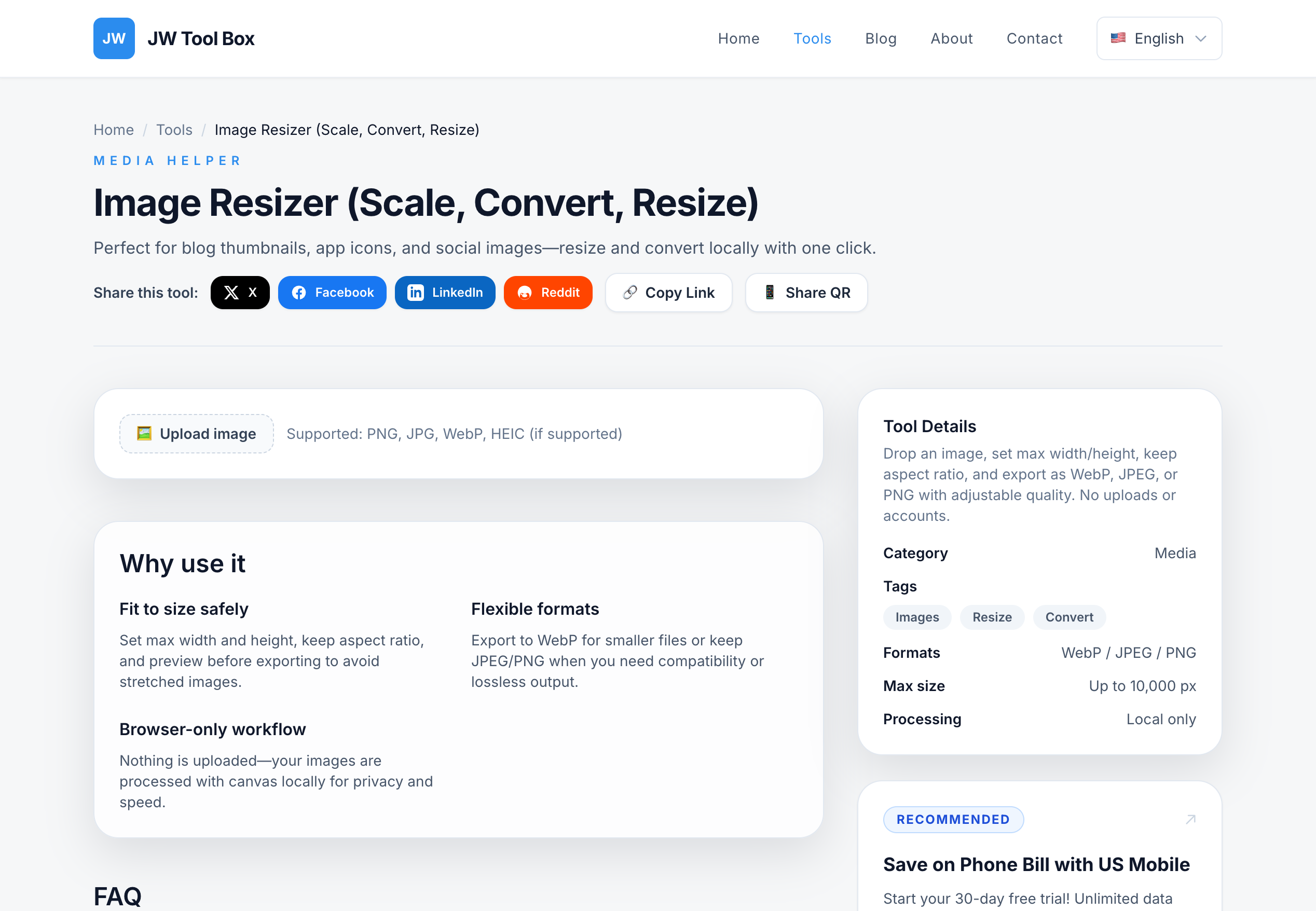
We built our Free Image Resizer around one constraint: the file never leaves your device. The resize happens on a canvas in your own browser tab, so there is no upload step and no server copy.
- Pros: instant processing, no upload, output as PNG, JPEG, or WebP, adjustable quality for JPEG and WebP, aspect ratio locked while you type a new width or height.
- Cons: one image at a time — there is no batch queue.
- Best for: privacy-conscious creators, and anyone exporting a single high-resolution photo to an exact width.
2. Adobe Express (The Heavyweight)
Adobe's free tier includes a resizer, but you need an account and the image is processed server-side.
- Pros: templates, filters, and a full design surface around the resize step.
- Cons: account creation required; overkill when you only want different pixel dimensions.
- Best for: people who need a finished design, not just a smaller file.
3. Canva (The All-in-One)
Canva is strong when you are designing from scratch. If you already took the photo and just need it at 1080 pixels wide, opening a full editor adds steps without adding value.
- Pros: enormous asset library and social templates.
- Cons: slower for a single resize; Magic Resize sits behind Canva Pro.
- Best for: designing posts and carousels from a blank canvas.
4. Simple Image Resizer (The Old School)
The classic bare-bones option. It works, and the interface has barely changed in a decade.
- Pros: minimal, obvious interface.
- Cons: ad-heavy, and your image is uploaded to their servers.
- Best for: quick, low-stakes resizing where the photo is not sensitive.
5. Promo.com Resizer
A resizer bundled into a social video marketing suite.
- Pros: sensible presets for each network.
- Cons: the free resizer funnels you toward their paid video plans.
- Best for: marketers already evaluating their video tooling.
Why "Client-Side" Wins
When you use our Image Resizer, the work happens on your own phone or laptop. There is no upload, so there is no upload latency — a 12-megapixel photo resizes in well under a second, even on a slow connection, because nothing has to travel.
Two practical consequences:
- Your originals stay yours. A client-side tool cannot leak a file it never received.
- Recompression is under your control. You choose the output format and, for JPEG and WebP, the quality level, instead of accepting whatever a server decided.
The trade-off is honest: with no server involved there is no server-side batch queue. If you need to convert hundreds of images at once, you want a different workflow.
How to Choose in 30 Seconds
- One photo, exact dimensions, no signup → a client-side tool. Use the Image Resizer.
- Photo is sensitive (ID documents, receipts, family photos) → never upload it to an ad-supported resizer.
- You need a designed post with text and branding → Canva or Express, and accept the account requirement.
- You need many images converted → batch workflow on your own machine, then compress the output.
Get the Dimensions Right First
Resizing is only half the job — the other half is knowing the target size. These guides carry the full, current numbers:
- Social media image sizes — Instagram, Facebook, X, and YouTube in one table.
- YouTube thumbnail size — 1280 × 720, plus the safe zone for text.
- Instagram reel cover size — why the cover is not the first frame.
The two numbers that matter most: Instagram feed posts at 1080 × 1350 (4:5) and stories and reels at 1080 × 1920 (9:16). Never upload wider than 1080 pixels to Instagram — it recompresses anything larger and you lose edge detail.
How to Resize a Photo for Instagram, Step by Step
- Open the Image Resizer.
- Drop your photo in. Leave the aspect ratio lock on.
- Set the width to 1080. The height adjusts automatically.
- Choose WebP for the smallest file at the best quality, or JPEG if a platform rejects WebP.
- Download and upload the result.
If the exported file is still larger than you would like, run it through the Image Compressor afterwards — you can reduce the file size again without changing the pixel dimensions.
Frequently Asked Questions
What are the best free web-based image resizer tools in 2026?
For a single photo at exact dimensions, a browser-based tool that processes the image locally is the fastest and safest option — ours is the Image Resizer. Adobe Express and Canva are better choices when you also need design templates, at the cost of an account and server-side processing.
What are the best free online image resizers, and how do they compare?
They differ on three axes: whether the file is uploaded, whether you need an account, and which formats you can export. Tools that process in the browser win on privacy and speed; tools with a design suite win on layout features. The comparison table above covers all five on those axes.
What is the best online image resizer for marketing creatives?
If the creative is already designed and you only need it at a platform's dimensions, resize locally and keep the master file untouched. If you are building the creative from scratch, a design tool with templates will save more time than a dedicated resizer.
How do I resize an image without uploading it?
Use a tool that processes the file in your browser, like the Image Resizer. The image is decoded and redrawn on a canvas inside your tab, so no network request carries the file anywhere.
Does resizing reduce image quality?
Resizing down is generally safe and often sharpens the result, because you are discarding pixels rather than inventing them. Resizing up always softens the image, since the extra pixels are interpolated. For JPEG and WebP you can also raise the quality setting to limit compression artefacts, and PNG stays lossless at the cost of a larger file.
Can I resize several photos at once?
Not in our resizer — it handles one image per pass, on purpose: keeping everything in the browser means there is no server queue to work through. For large batches, use a desktop tool or ImageMagick locally.
The Short Version
Stop trading privacy for convenience. For a single photo that needs to hit an exact width, use a tool that resizes it on your machine — the Image Resizer does that in a few seconds, with no account and no upload.
About the author
JW Tool Box - Editorial and product review team
JW Tool Box publishes hands-on guides tied directly to the site's browser-based tools. Content is updated when browser behavior, platform rules, or product requirements change in ways that affect real workflows. The goal is to provide practical instructions, tested defaults, and trustworthy reference content instead of thin keyword filler.
Related guides
-
How to Resize Photos for Instagram, Facebook & More — 2026 Size Guide
TL;DR — Instagram post: 1080×1350 (4:5 portrait). Story/Reel: 1080×1920 (9:16). Facebook: 1200×630. YouTube thumbnail: 1280×720. Resize any photo instantly with the Image Resizer → Every social platform compresses images differently, displays them at different sizes, and penalizes uploads that don't match their specs. The result: blurry thumbnails, awkward crops, and lower engagement — all bec…
-
YouTube Thumbnail Size Guide 2026: Best Resolution, Dimensions & CTR Tips
Your YouTube thumbnail is the single most important factor in whether someone clicks your video—more than the title, more than your subscriber count. A bad thumbnail means no watch time, no growth, no algorithm boost. TL;DR — The ideal YouTube thumbnail is 1280×720 pixels, 16:9 aspect ratio, under 2 MB, in JPG or PNG format. Keep key text and faces within the center 80% of the frame to avoid Y…
-
Instagram Reel Cover Size 2026: Exact 1080×1920 Dimensions and Safe Zone
The correct Instagram Reel cover size in 2026 is 1080×1920 px in a 9:16 vertical frame. The part that causes mistakes is the profile grid: Instagram shows a center 1080×1350 px safe zone, so text, faces, and logos near the very top or bottom can be cropped. If your Reel cover looks great in preview but gets awkwardly cropped in your profile grid, this guide gives you the exact dimensions and a…
Related tools
Additional browser-based utilities that are closely related to this workflow.
-
Image Compressor (Reduce Size for Web, PNG/JPG/WebP)
Shrink PNG/JPG/WebP files and export optimized assets instantly.
-
Image Resizer: Resize JPG, PNG, and WebP
Resize images to exact dimensions and convert to WebP, JPEG, or PNG entirely in your browser.